
Online Access to Bookings for Clients
By logging into WordPress, your customers can access and review their past and upcoming bookings on your site. Additionally, they have the option to cancel reservations if needed.
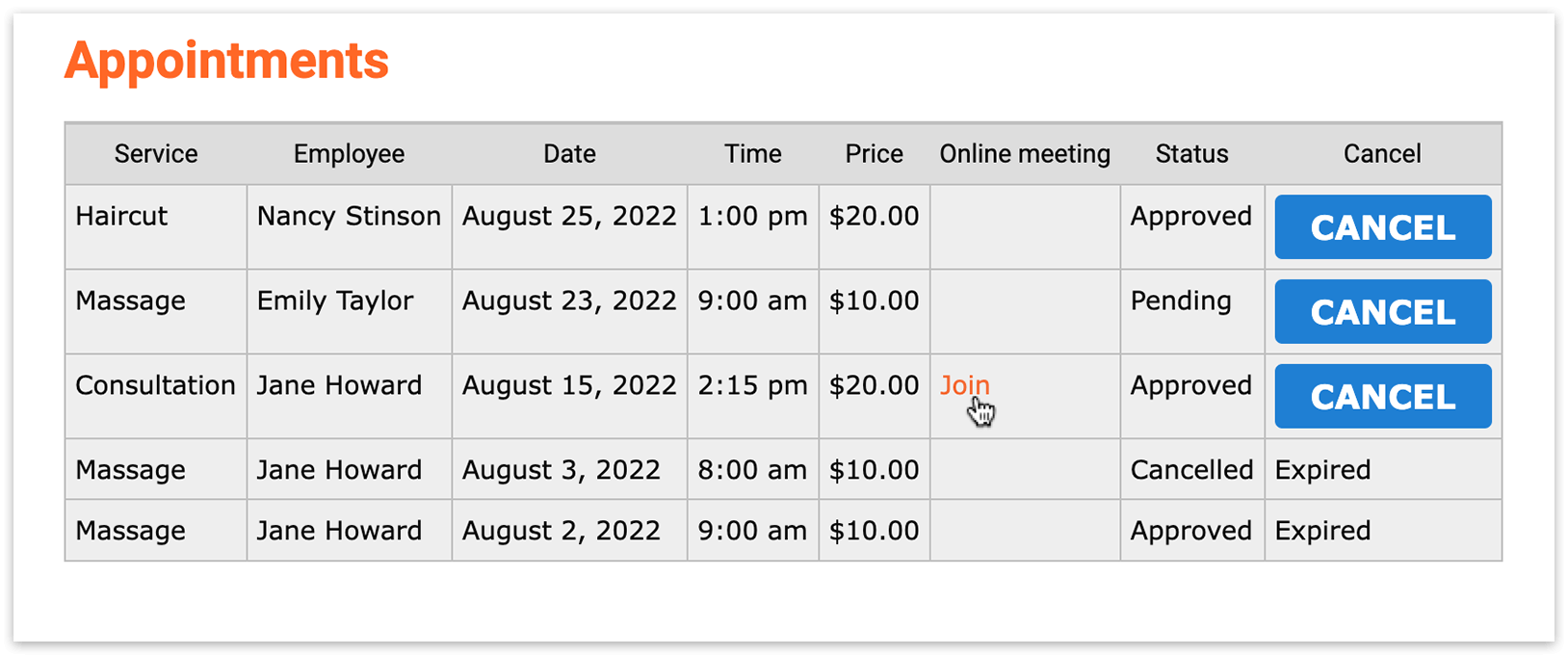
In Pages, create or edit the page where you want to display the list of bookings.
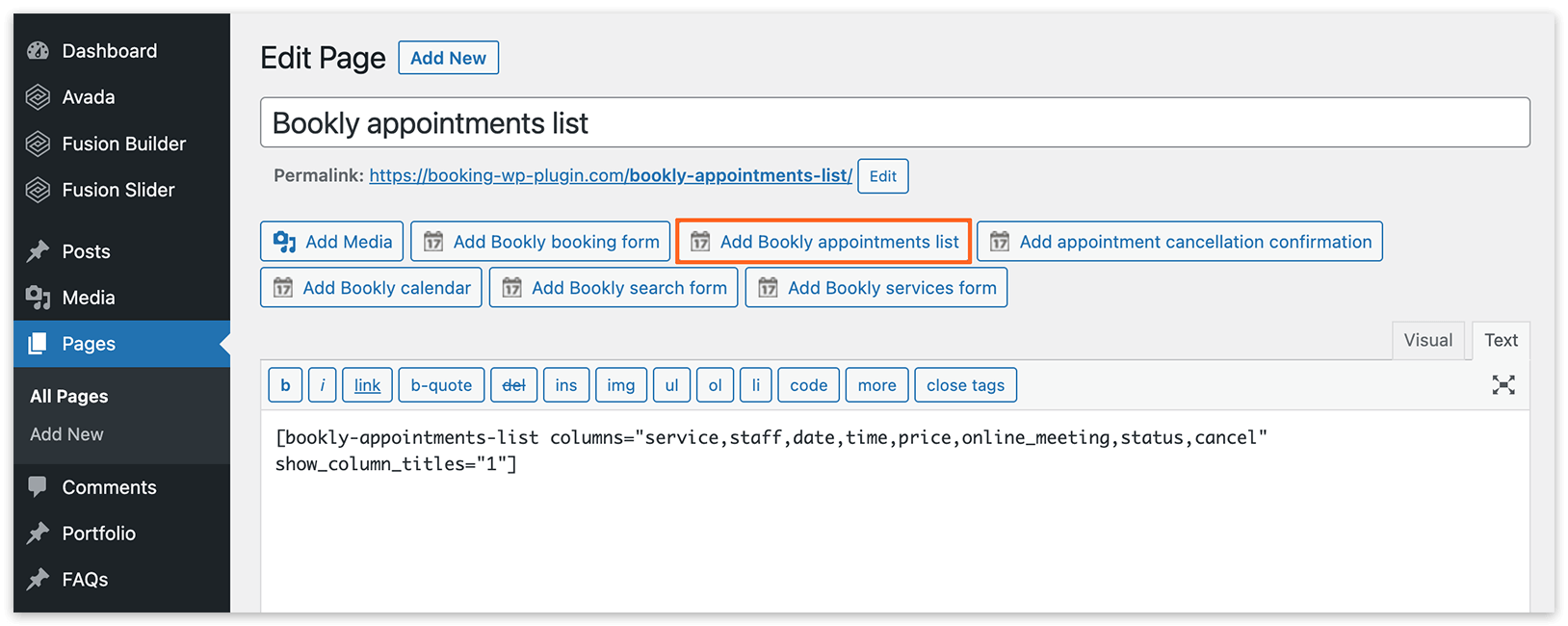
In the page editor, click on the Add Bookly appointments list button to insert the [bookly-appointments-list] shortcode.
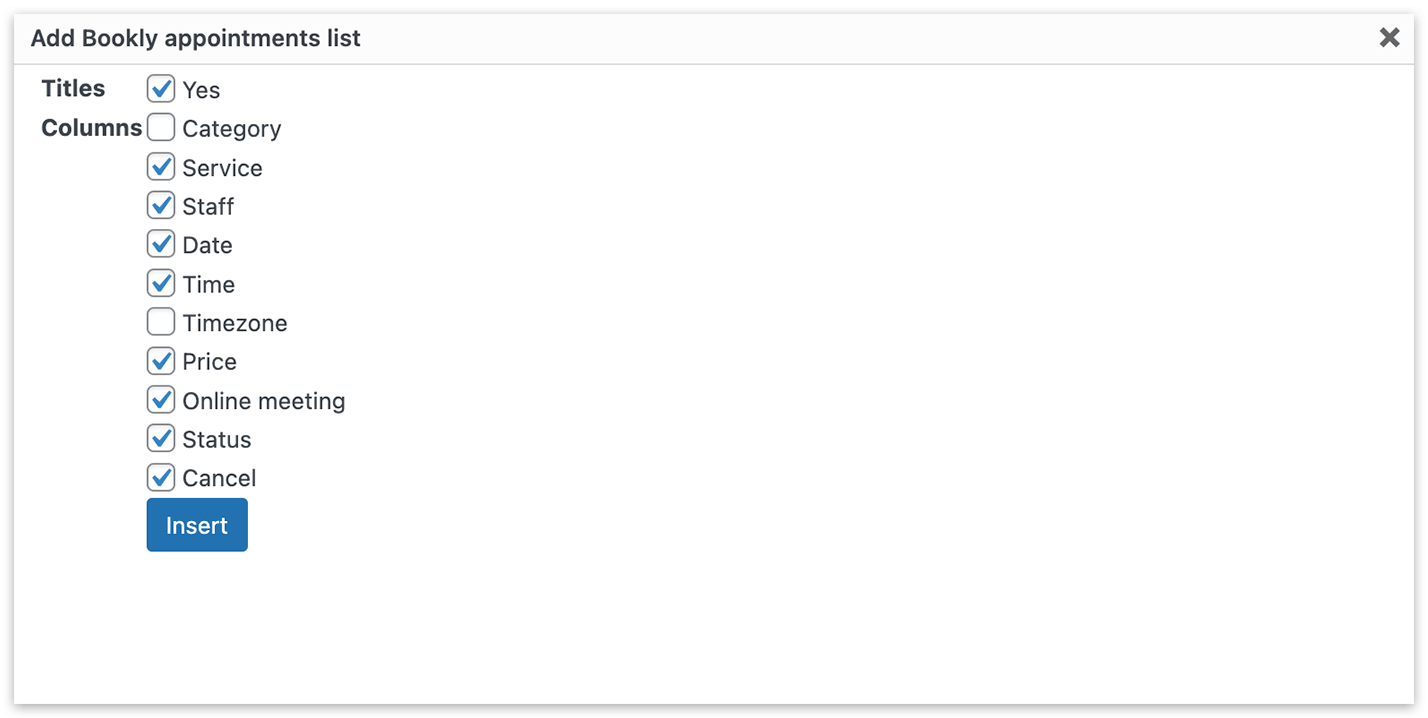
Choose the columns you want to include in the table, including the “Cancel” button, which enables customers to cancel appointments with just one click, helping reduce no-shows.
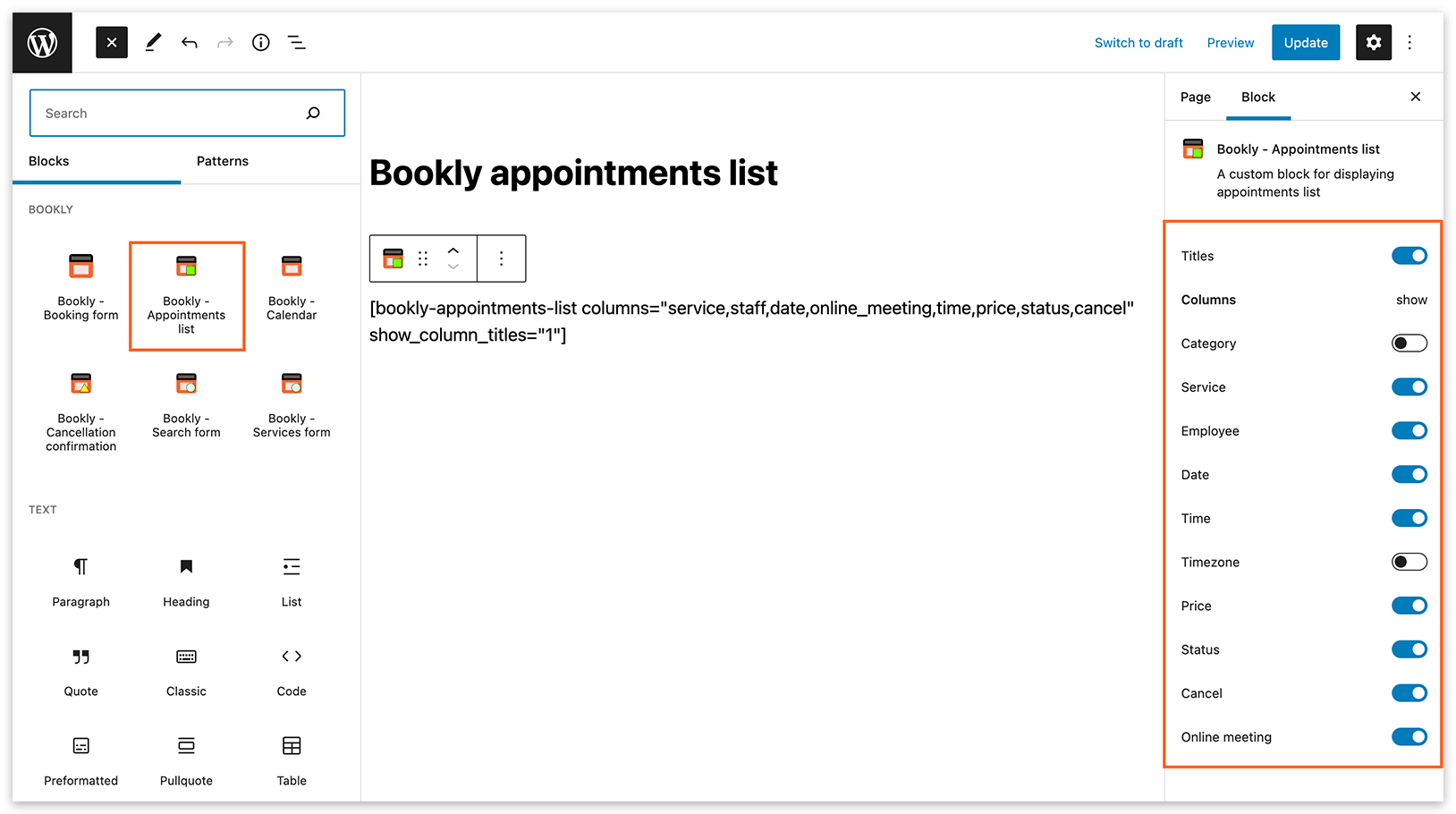
In the Gutenberg editor, click the + icon, choose the Bookly block, and then select Bookly – Appointments list to insert the shortcode into your page. On the right, specify the columns you want to display.
Customers can see their appointments only if they are associated with a WordPress user account and are logged in on a page where you added the appointment list shortcode.
When the Create WordPress user account for customers setting is activated (found in Settings > Customers), Bookly generates WordPress user accounts for new customers. If a user is logged in, the new customer will be linked to the existing user account.
For an existing customer, check the User column in the Bookly Customers section to see whether a WordPress user account is linked. If necessary, edit the customer and select the corresponding WordPress user in the User field. The customer must log in with that account to see their bookings.
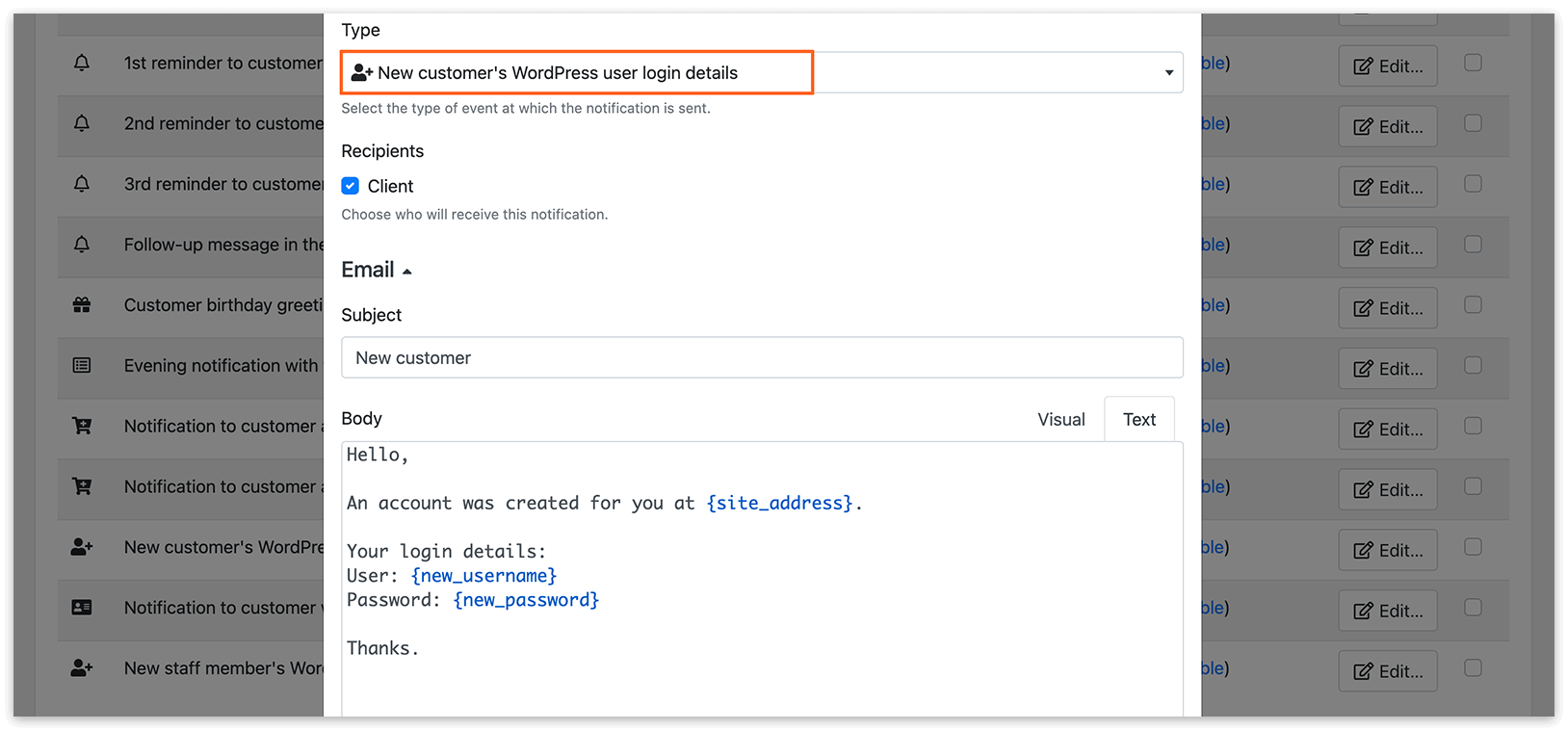
WordPress user details (login and password) can be automatically sent in the email or SMS notification by enabling New customer’s WordPress user login details in the notification settings.
Personal customer cabinet for your clients
Section titled “Personal customer cabinet for your clients”With the Bookly Customer Cabinet (Add-on) enabled, you can provide your clients with more options for managing their bookings and updating profile information within their personalized user account on your website. Explore more details here.
Access to booked packages
Section titled “Access to booked packages”If you’ve activated the Bookly Packages (Add-on) to provide your customers with package deals, you can grant them the ability to schedule appointments within the package and access additional details by adding the [bookly-packages-list] shortcode on your webpage. Learn more here.
Cancellation link in notifications
Section titled “Cancellation link in notifications”To streamline the cancellation process for your customers, you can include a cancellation link in your email notifications. In the relevant notification template, switch to the text editing mode and use the {cancel_appointment_url} placeholder as the href value of an <a> tag:
<a href="{cancel_appointment_url}">Cancel appointment</a>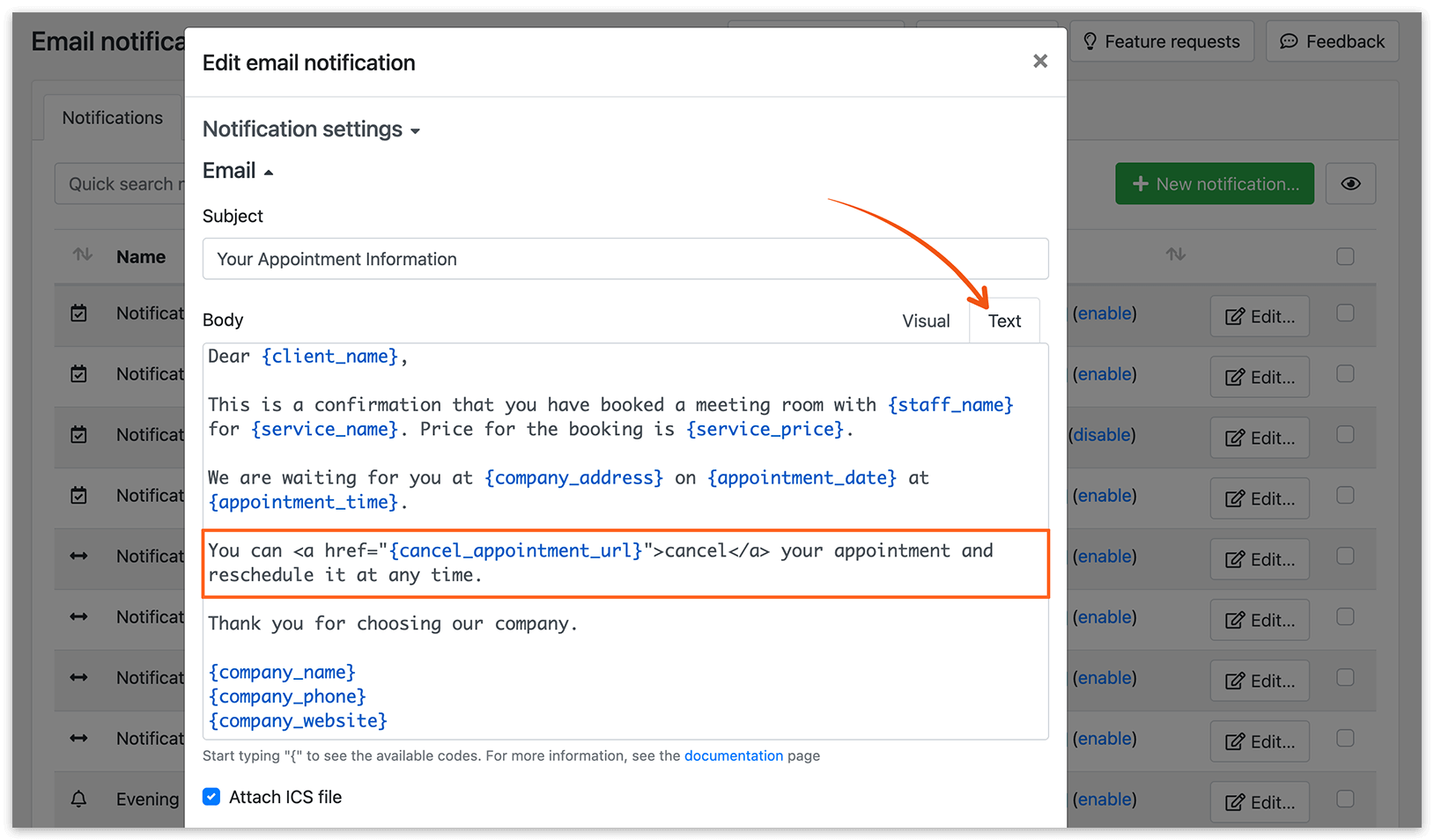
For an appointment confirmation email, you can copy the complete example below. Enter the subject in the Subject field, then switch the Body field to Text mode and paste the template. Bookly replaces the placeholders with the appointment and company details when sending the notification.
Subject: Your Appointment Confirmation
Dear {client_name},
Your appointment for {service_name} with {staff_name} is confirmed.
Date: {appointment_date}Time: {appointment_time}Location: {company_address}Price: {service_price}
If you need to cancel your appointment, please use the link below before the cancellation deadline:<a href="{cancel_appointment_url}">Cancel appointment</a>
We look forward to seeing you!
{company_name}{company_phone}{company_website}
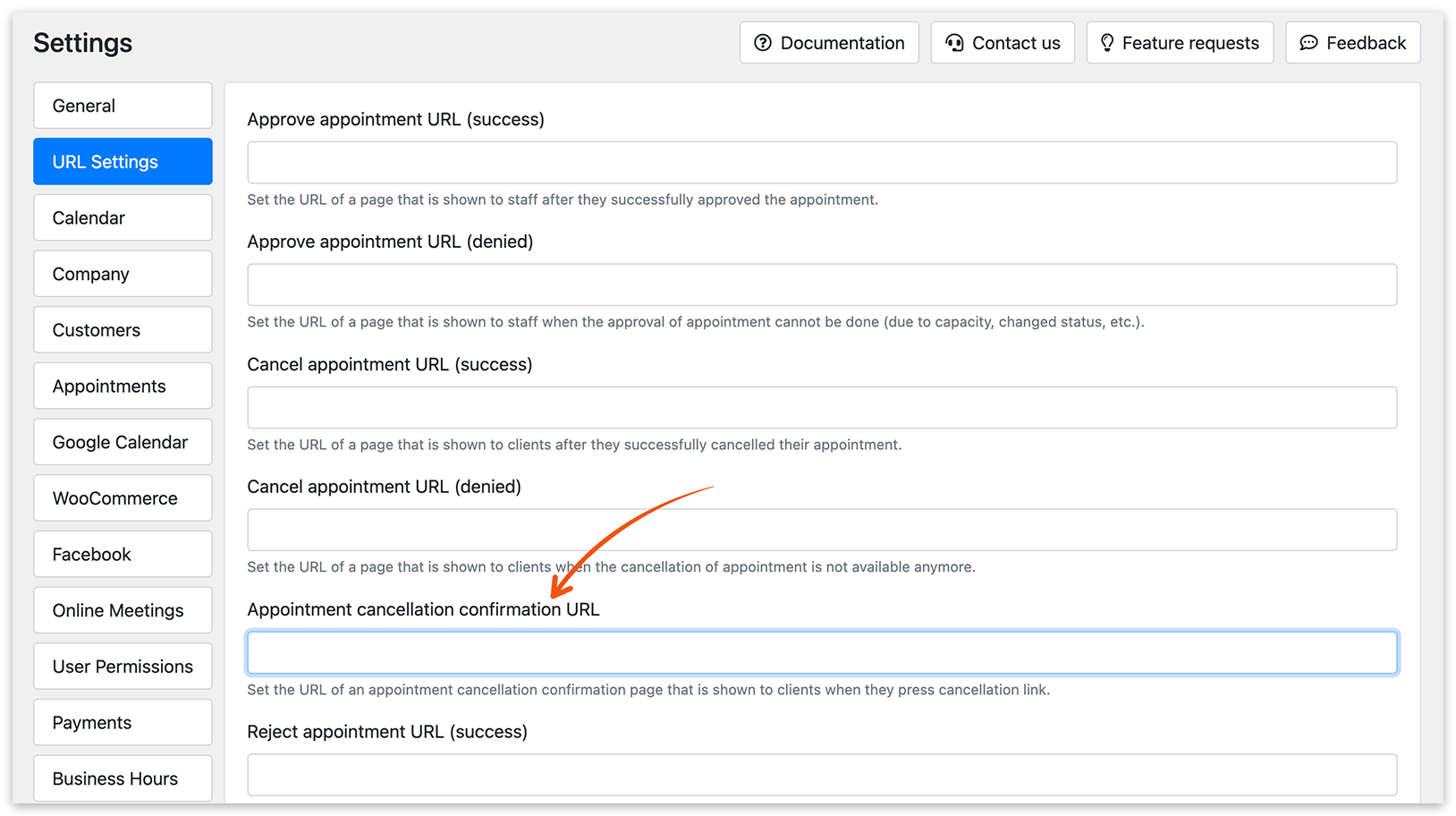
Navigate to Settings > URL Settings > Cancel appointment URL (success) to specify the URL of the page customers will be directed to after a successful cancellation. Set Cancel appointment URL (denied) to the page shown when cancellation is no longer available, for example, because the cancellation deadline has passed. See Re-Direct Links for more details.
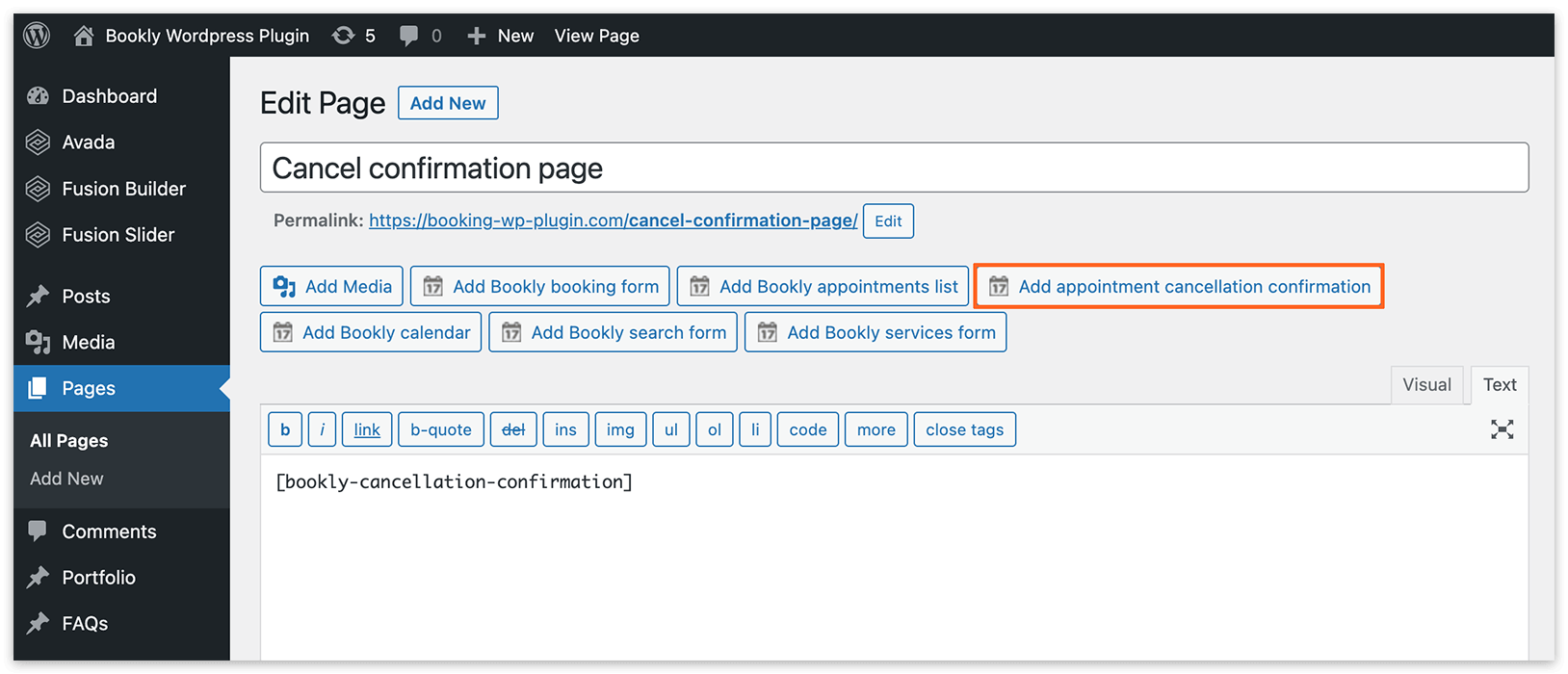
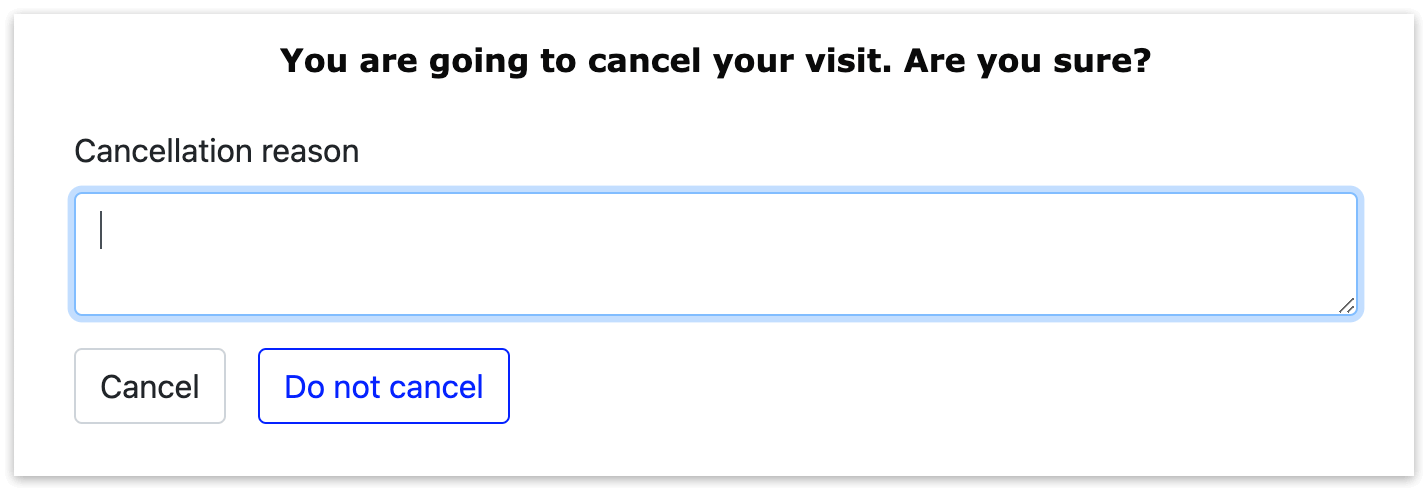
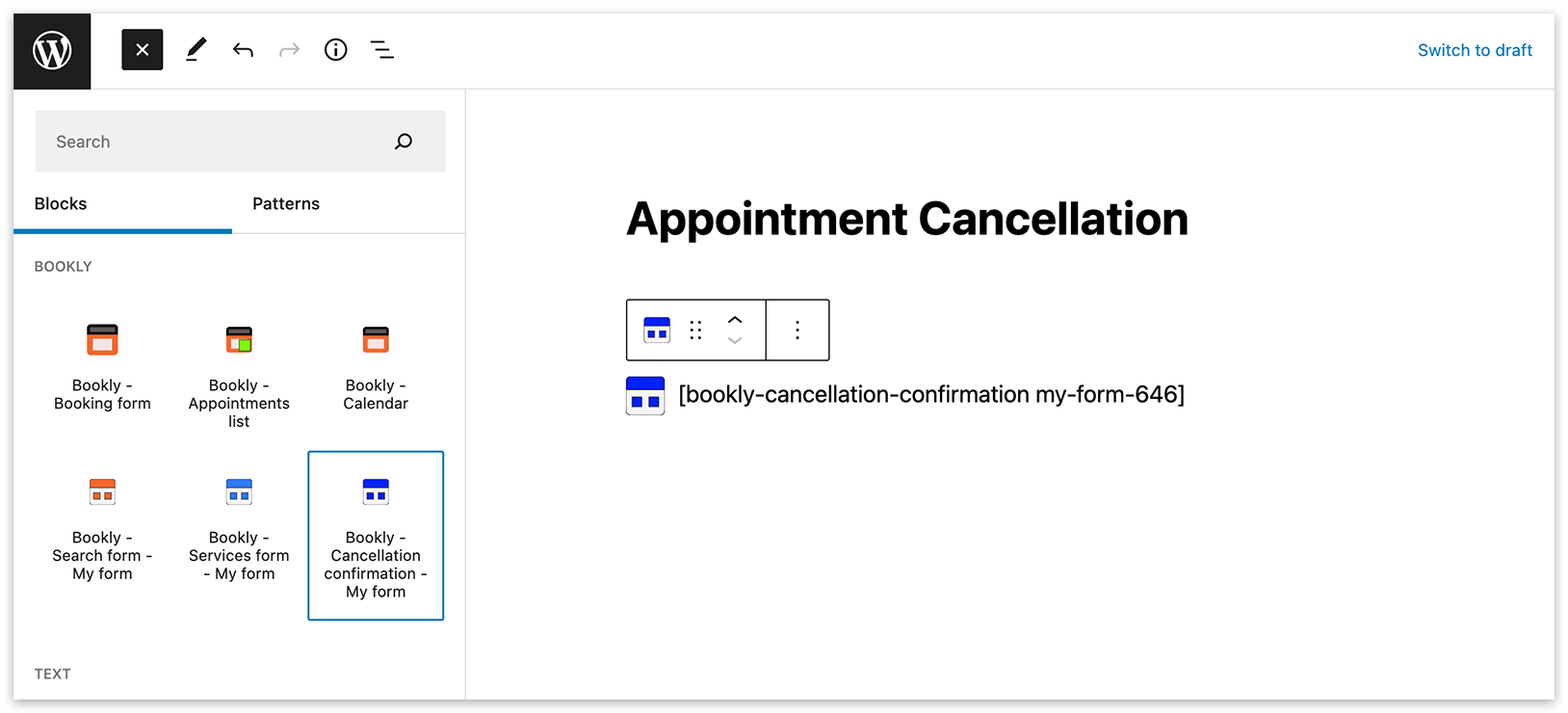
Use the {cancel_appointment_confirm_url} code to generate a link that redirects users to a page where they can confirm the cancellation. Beforehand, create this page and insert the [bookly-cancellation-confirmation] shortcode by clicking the Add Bookly Cancellation confirmation button.
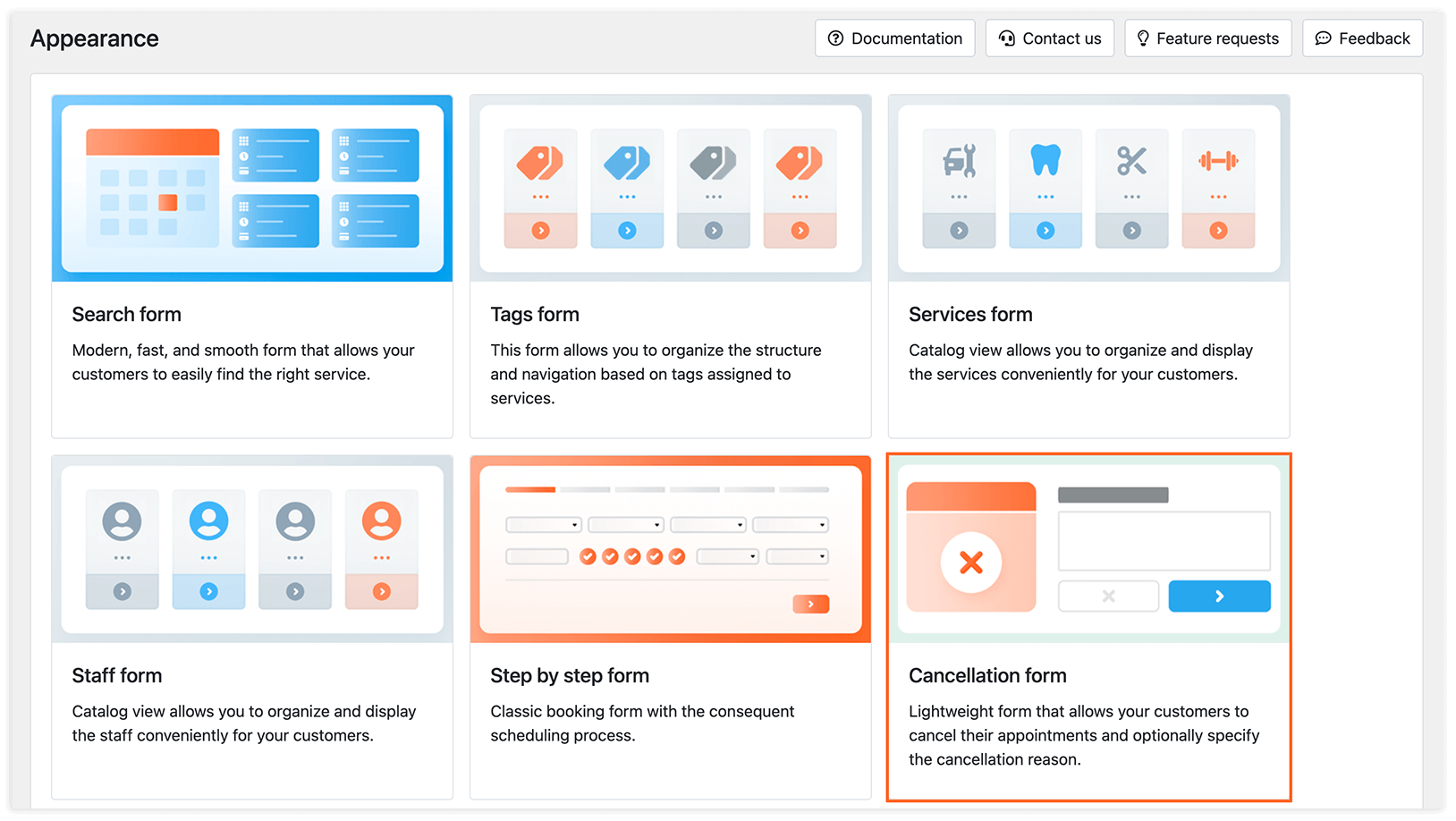
To create a custom design of the cancellation form, navigate to the Appearance section and select Cancellation form > Add new form.
To modify field names and edit text, click the relevant area and update the template on the right side. You have the option to enable a cancellation reason input box and make it required, choose the color scheme, change the form slug, and apply custom CSS.
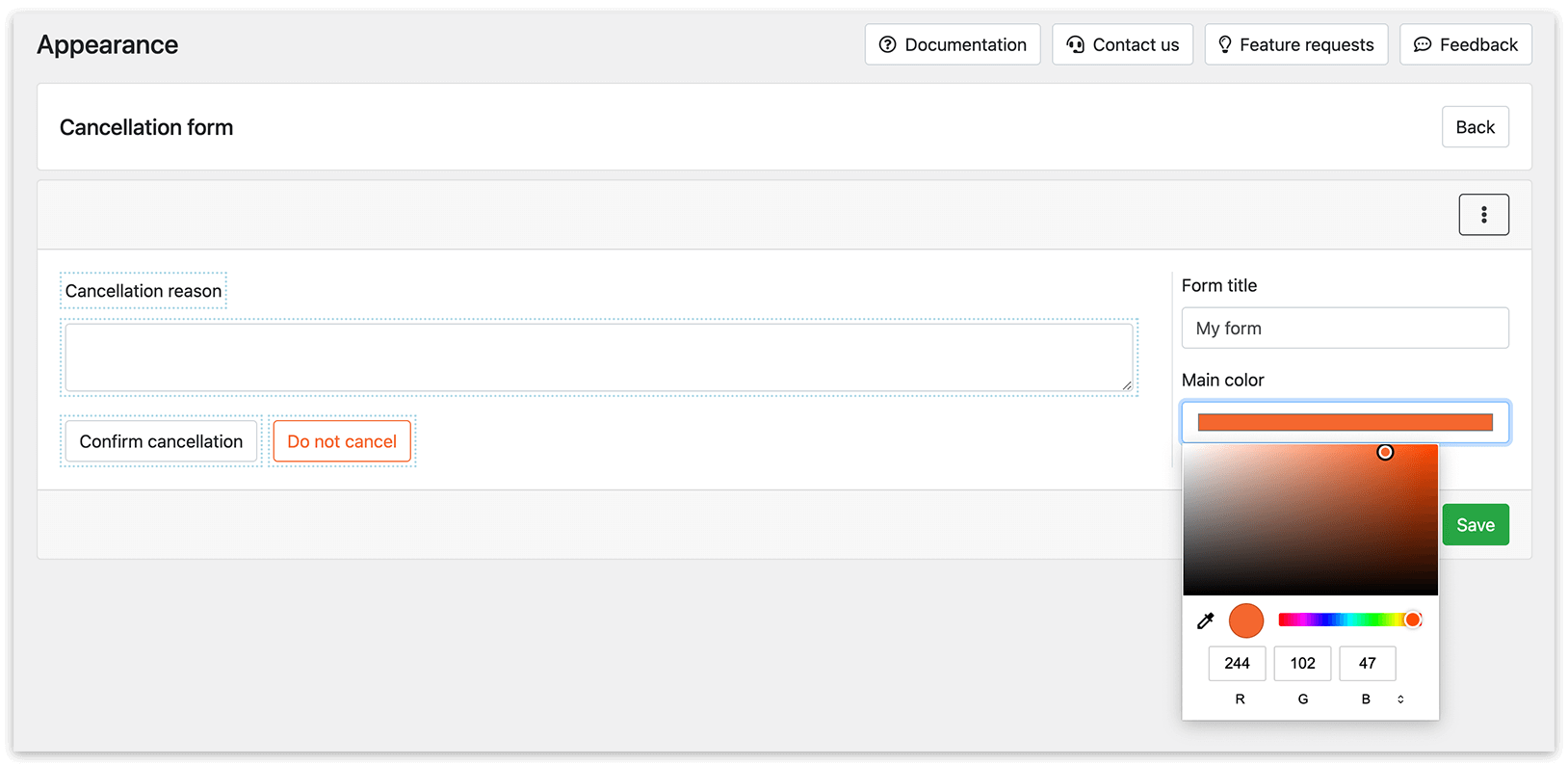
Information provided in the cancellation reason field can be included into notifications using the {cancellation_reason} code.
In the Gutenberg editor, click the + icon and choose the Bookly block. Then, select Bookly – Cancellation confirmation to insert the shortcode into your page.
Then add the URL of this page in Settings > URL settings > Appointment cancellation confirmation URL.
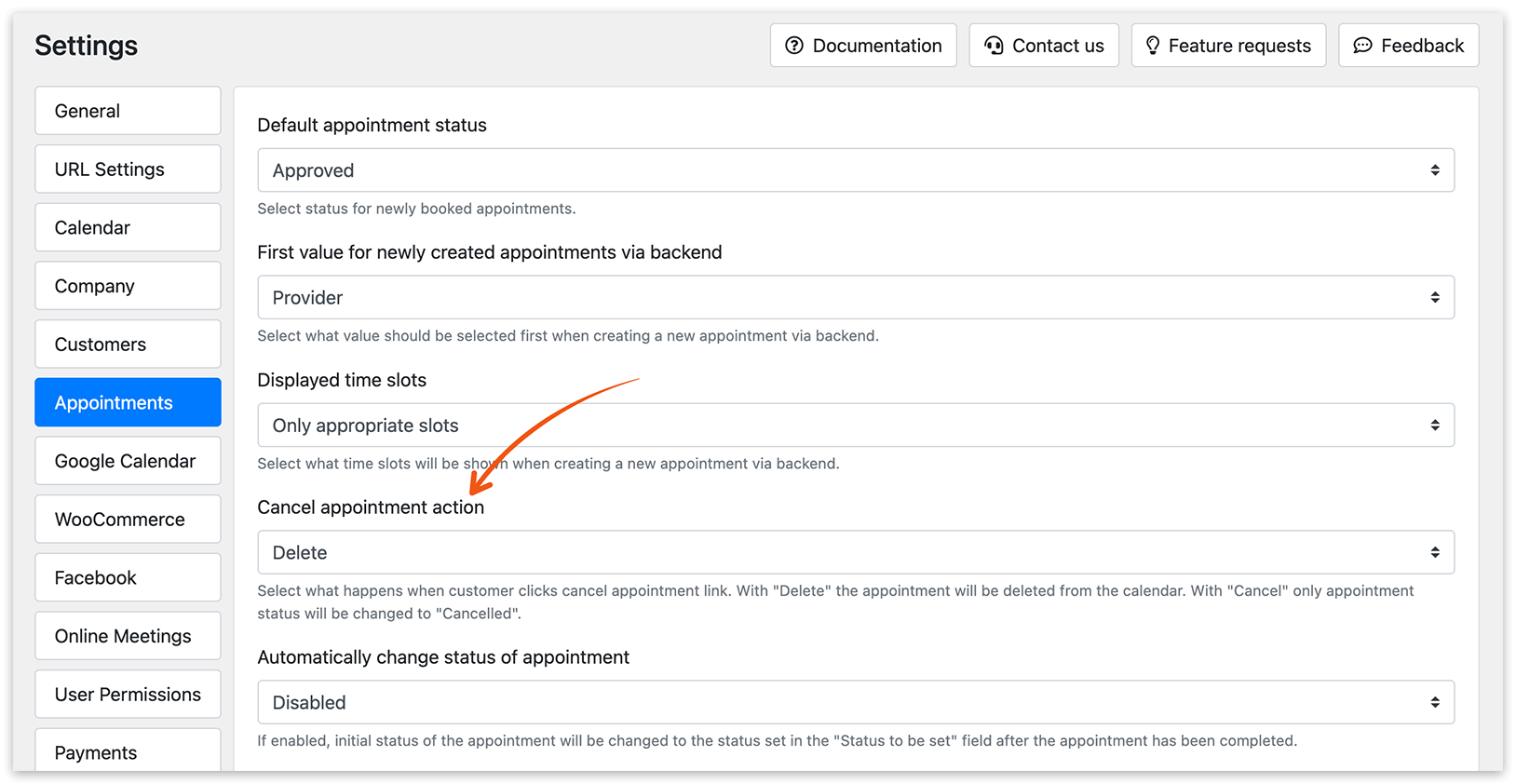
Keep in mind that the cancel action is related to the Cancel appointment action setting (Settings > Appointments). You can choose what happens when a customer clicks the cancel appointment link. With “Delete”, the appointment will be removed from the calendar. With “Cancel”, the appointment status will be changed to “Cancelled”.
Online cancellations are subject to the Minimum time requirement prior to canceling setting in Settings > General. You can also configure this limit for an individual service in Services > Edit > Advanced. Once the cancellation deadline has passed, customers can no longer cancel the appointment online. See Last cancellation date for details.
RELATED
Notifications – a good way to keep clients in the loop.