
Taxes Add-on
Bookly Taxes (Add-on) lets you configure tax rates and apply them to your services and products. Bookly calculates taxes using your settings and can display them in the cart summary.
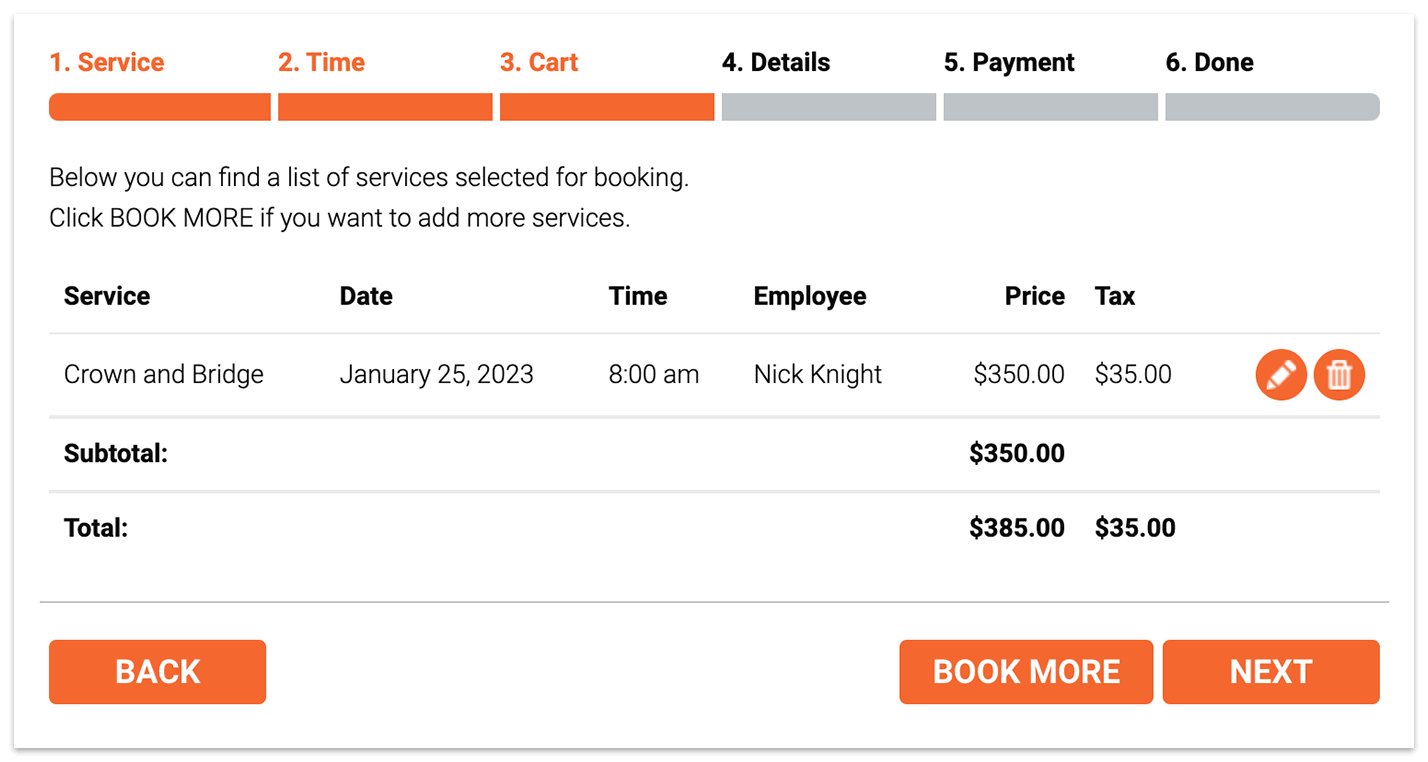
This screenshot displays the booking form with Bookly Cart (Add-on) installed and activated
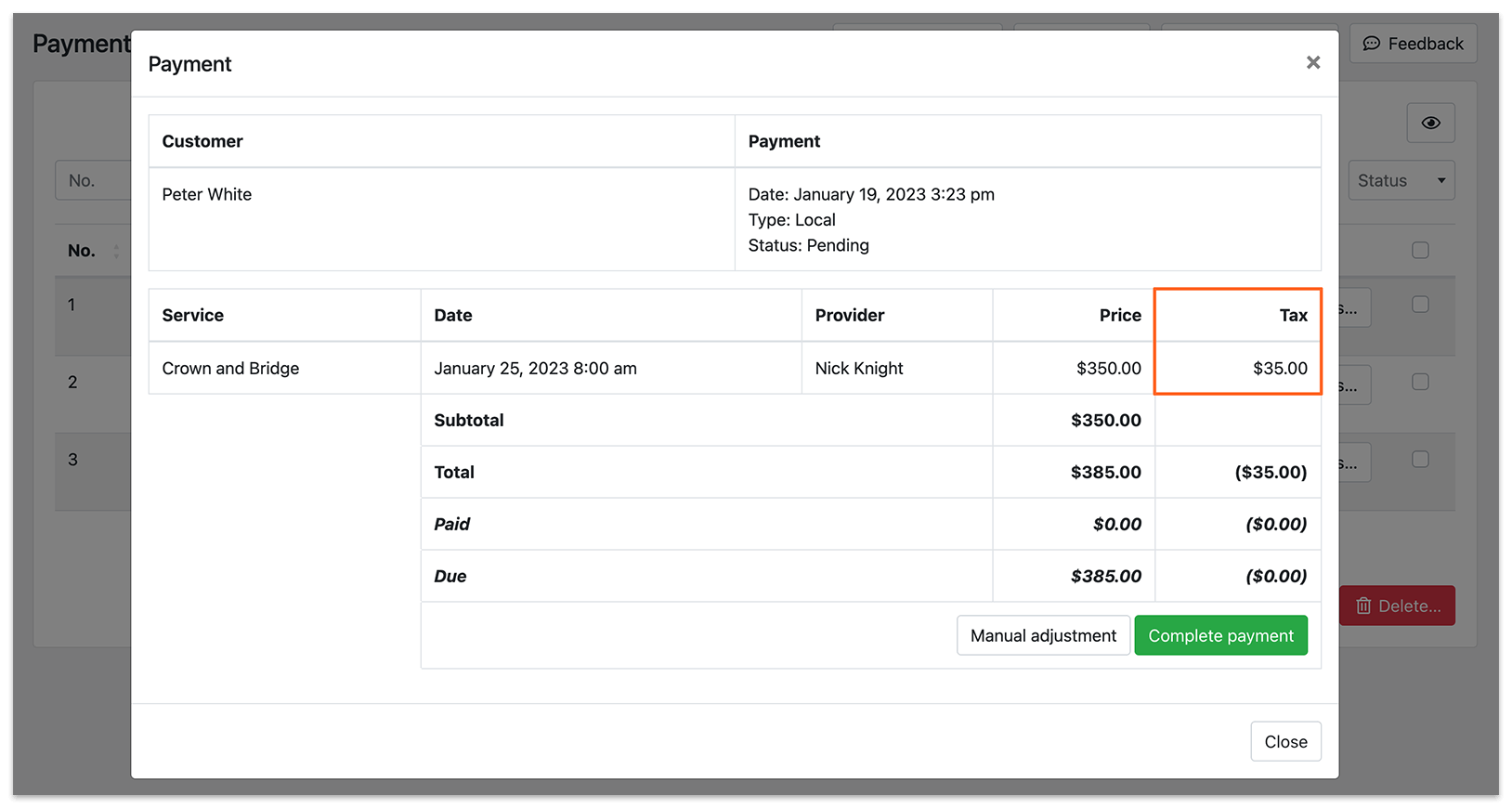
Setup and configuration
Section titled “Setup and configuration”1. Install and activate the add-on
Section titled “1. Install and activate the add-on”Purchase, download, install and activate Bookly Taxes (Add-on) in Plugins.
2. Choose whether prices include tax
Section titled “2. Choose whether prices include tax”Navigate to Settings > Payments > Price settings and display to specify whether your prices will be entered inclusive or exclusive of tax.
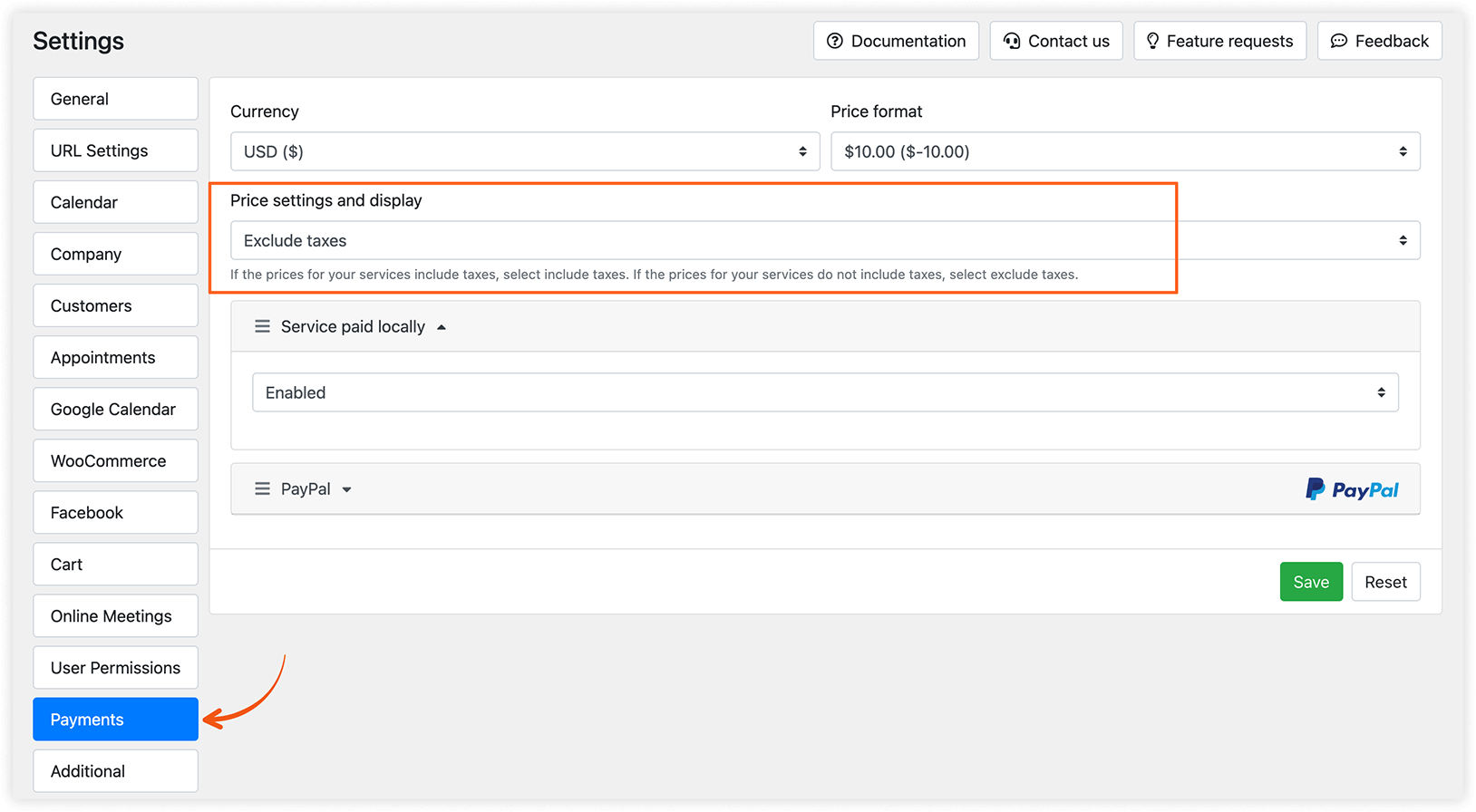
This decision depends on your jurisdiction’s tax regulations:
- If your service prices include taxes, select Include taxes. The tax amount will be calculated using the formula: tax_amount = price - ( price / ( ( tax_rate_% / 100 ) + 1 ) ).
- If your service prices do not include taxes, select Exclude taxes. The tax amount will be calculated using the formula: tax_amount = price * ( tax_rate_% / 100 ).
3. Create a tax
Section titled “3. Create a tax”Go to the Taxes section on the left menu. Click on the Add tax button to create a new tax.
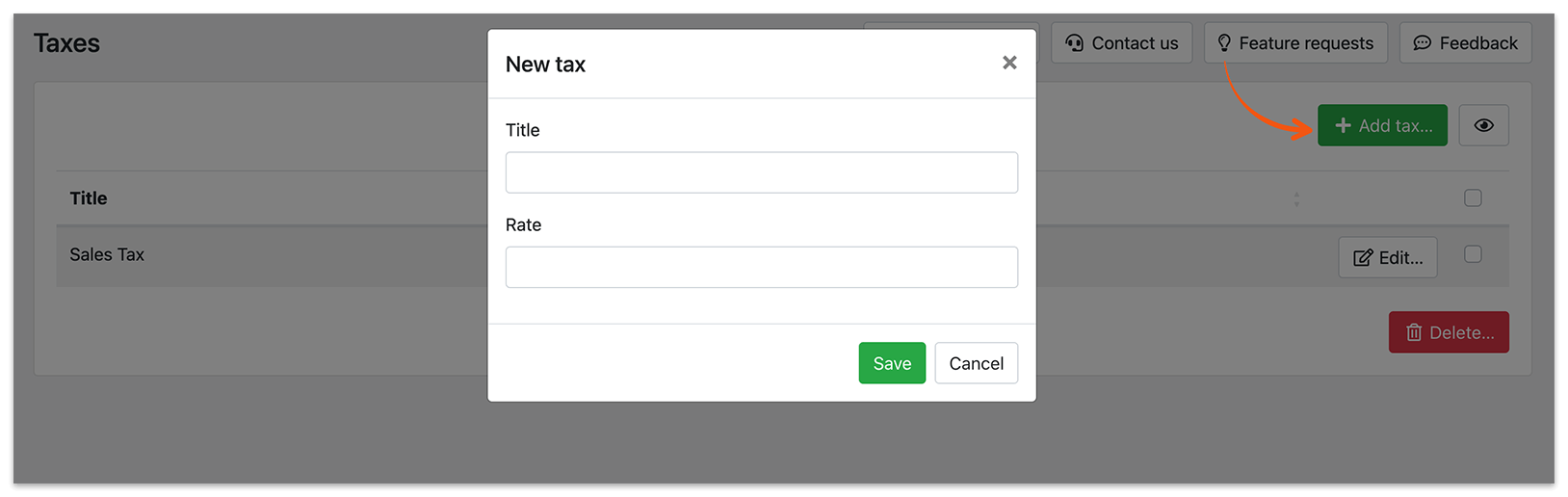
Title: Provide a name for the tax, which will be displayed in the list of all available taxes.
Rate: Specify the tax rate as a percentage of the total order amount.
4. Apply taxes to a service
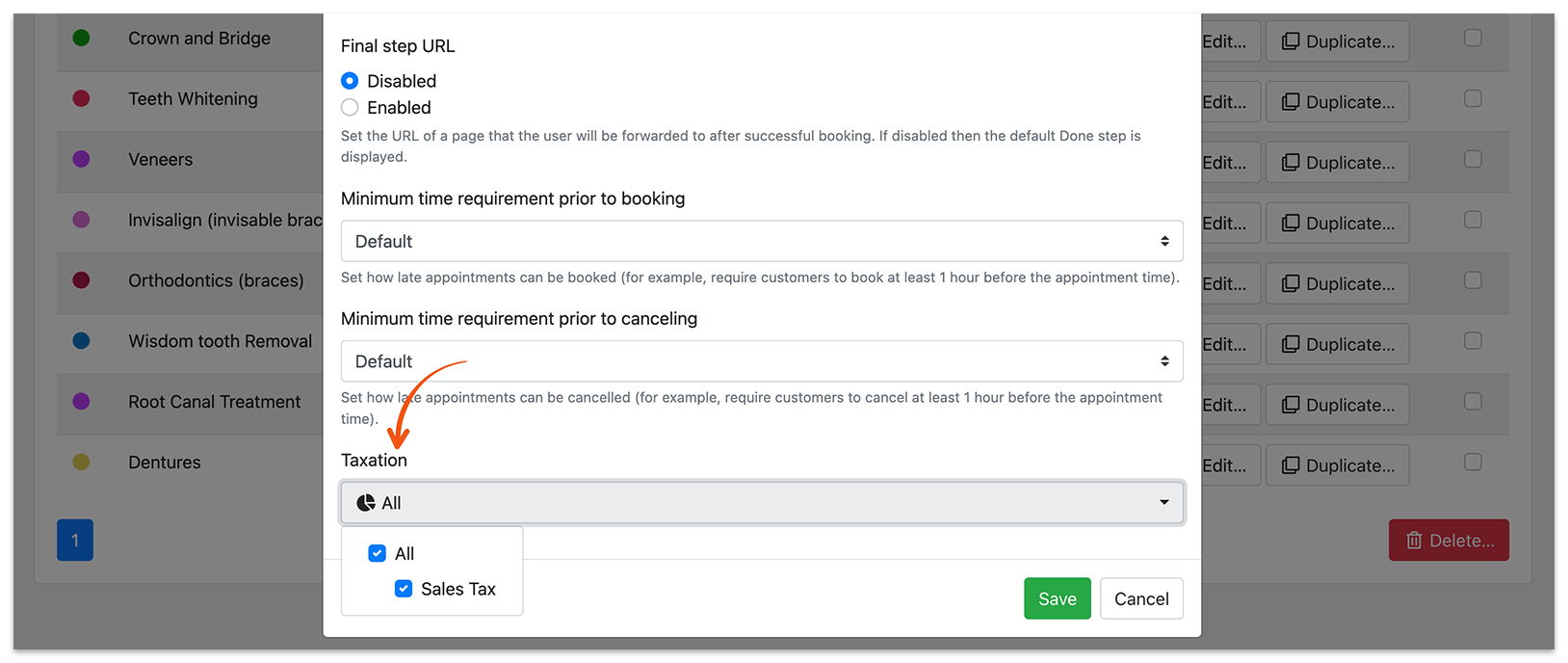
Section titled “4. Apply taxes to a service”To apply a tax to a service, navigate to the Services section, click Edit > Advanced tab. Under Taxation, select one or more taxes from the drop-down list.
5. Display taxes in the booking form
Section titled “5. Display taxes in the booking form”To display tax information in your booking form, you have two options:
- Enable the cart feature, which is available with the installed and activated Bookly Cart (Add-on).
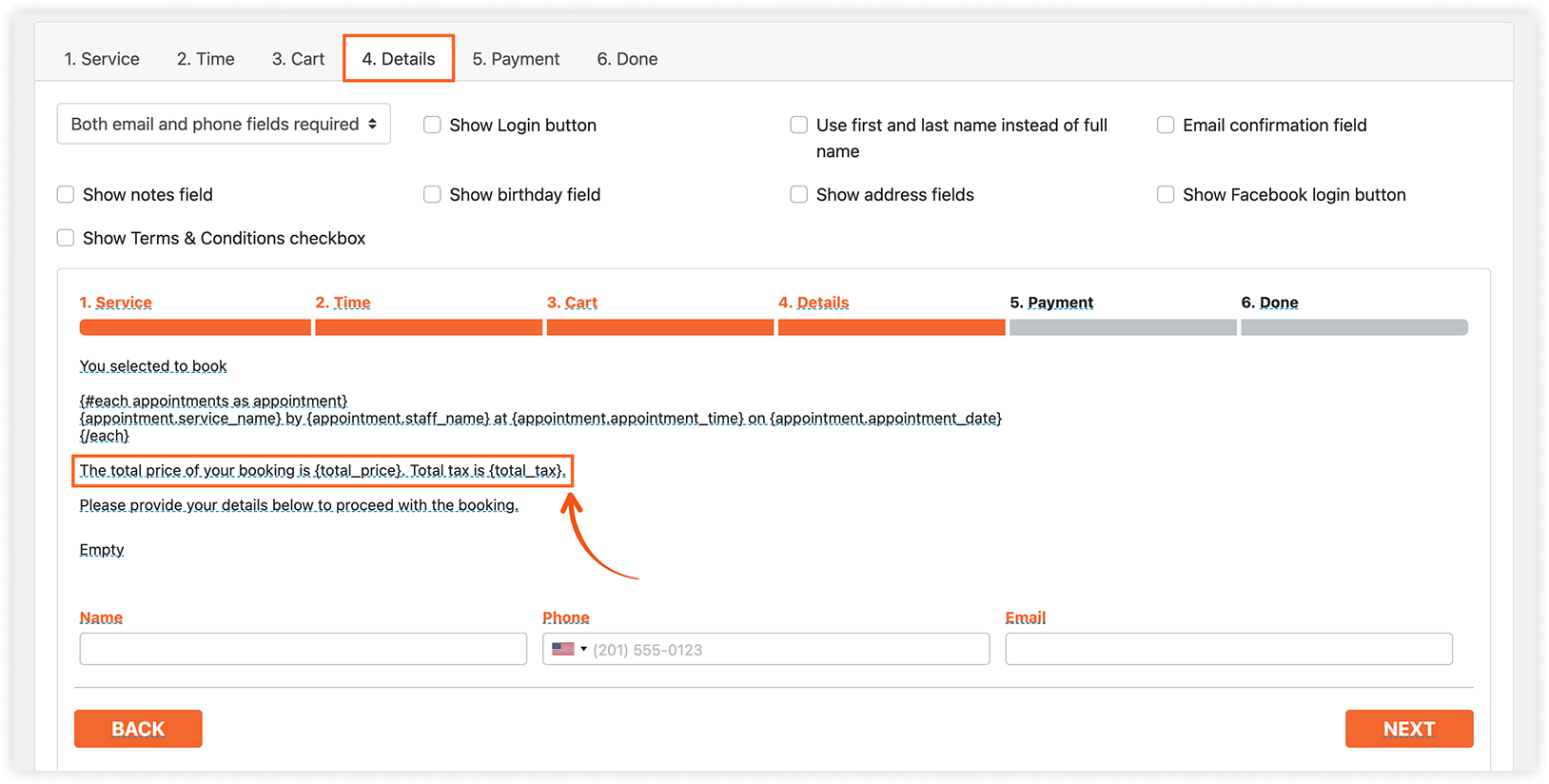
- For the classic step-by-step booking form, add codes such as {service_tax}, {total_tax}, {service_tax_rate}, {total_price_no_tax} in the Appearance > Details tab when editing the wording of your message.
6. Send tax information to a payment gateway
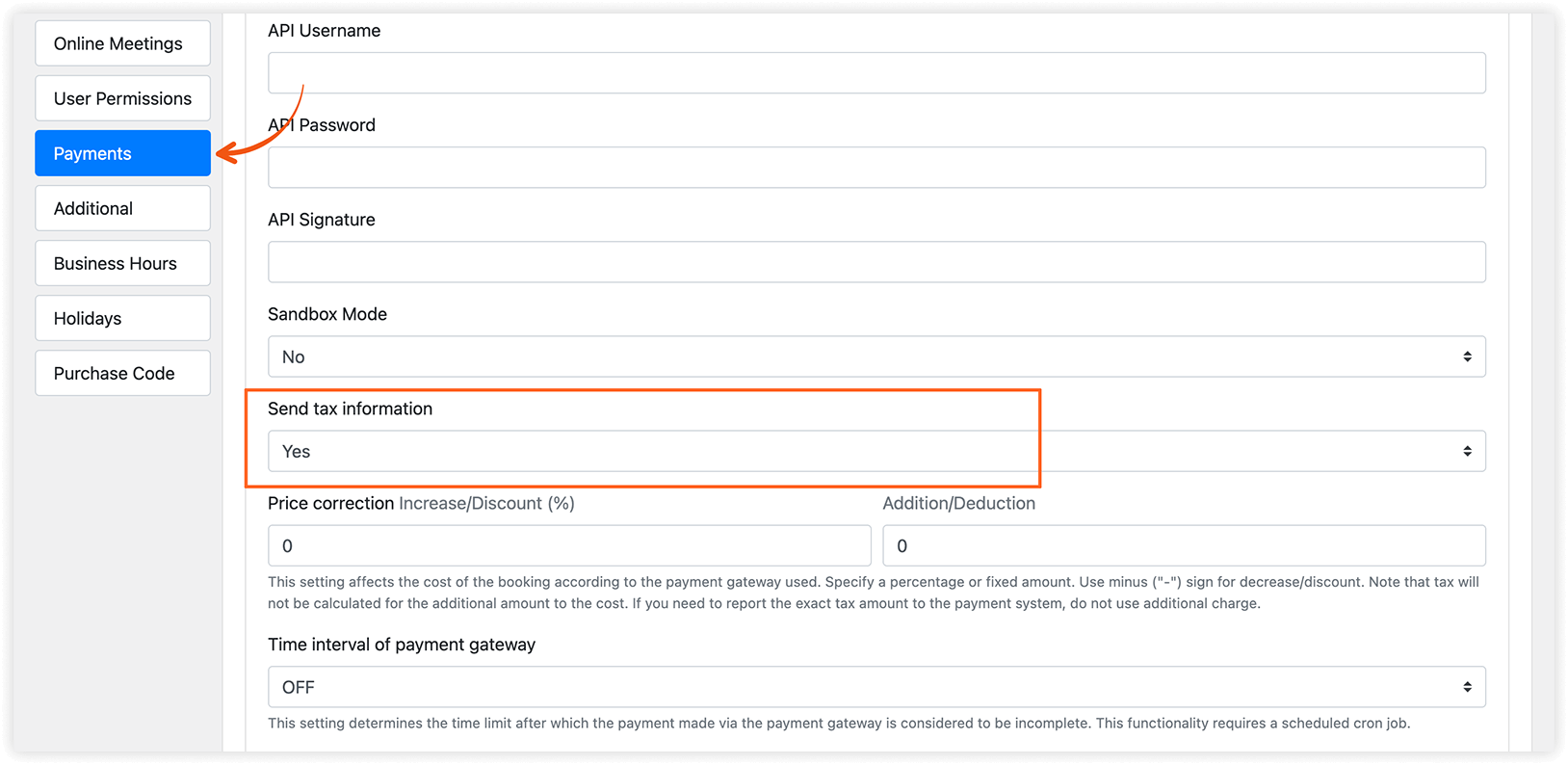
Section titled “6. Send tax information to a payment gateway”You can send information about taxes to your payment gateway. In Settings > Payments, select the payment gateway you use and choose Yes or No in the Send tax information dropdown menu.
Integration of Taxes (Add-on) with other Bookly items
Section titled “Integration of Taxes (Add-on) with other Bookly items”Promo codes reduce the cost of services, so taxes will be calculated after applying all discounts separately for each service (because you can apply different taxes to different services). If the coupon is valid for the entire order, the cost of all services is reduced by the specified percentage. If the discount is set up in absolute values (fixed amount off, e.g., $10 off), it will be converted into percentages and then deducted from each order item with the subsequent recalculation of the tax.
Taxes and Group Discount (Customer Groups)
Section titled “Taxes and Group Discount (Customer Groups)”Group discount allows reducing the total price by a specified percentage or value. Thus, the group discount will be processed in the same way as coupons.
Note: If you use price correction to raise the service cost according to the payment gateway used (Bookly menu > Settings > Payments > [payment gateway] > Price correction), tax will not be calculated for the additional amount to the cost. If you need to report the exact tax amount to the payment system, do not use additional charges.
Taxes and Cart
Section titled “Taxes and Cart”In Bookly menu > Settings > Cart, ensure that you’ve checked the Tax column so that this information will be displayed in the cart summary right before the booking confirmation.
Try this demo to get a better understanding of how the Bookly Taxes (Add-on) works.
RELATED
Section titled “RELATED”Coupons (Add-on) – create and manage promo codes to boost sales.
Deposit Payments (Add-on) – set up a deposit amount to be paid at the time of booking.