
Front-end Calendar for Customers
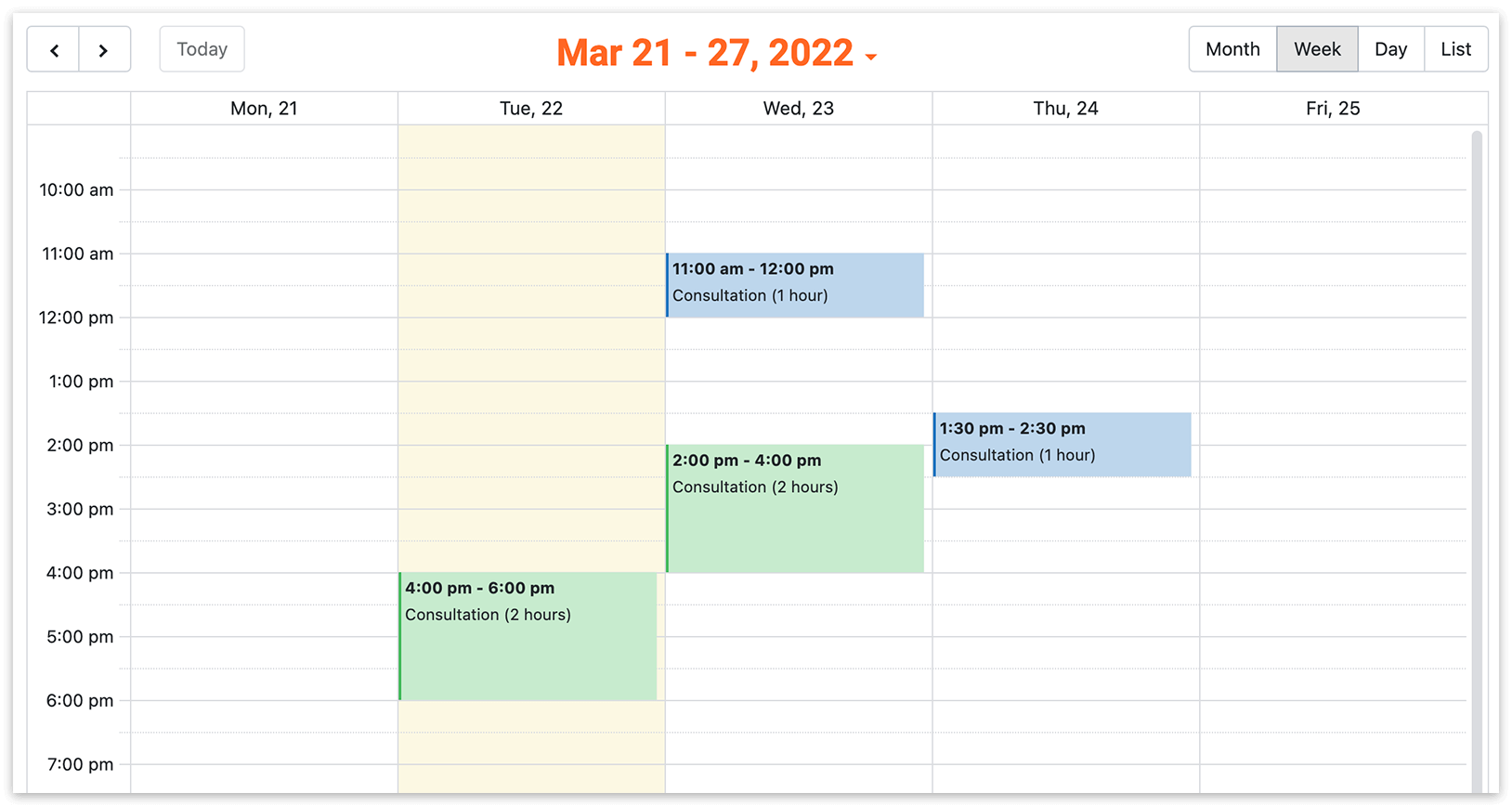
Add a public calendar to your website so customers can view staff availability. It displays occupied time slots and the corresponding service names.
Enable the calendar
Section titled “Enable the calendar”- Go to Bookly > Settings > Additional.
- Set Display front-end calendar to Enabled.
Add the calendar to a page
Section titled “Add the calendar to a page”- Open Pages or Posts in WordPress and edit the page where you want the calendar to appear.
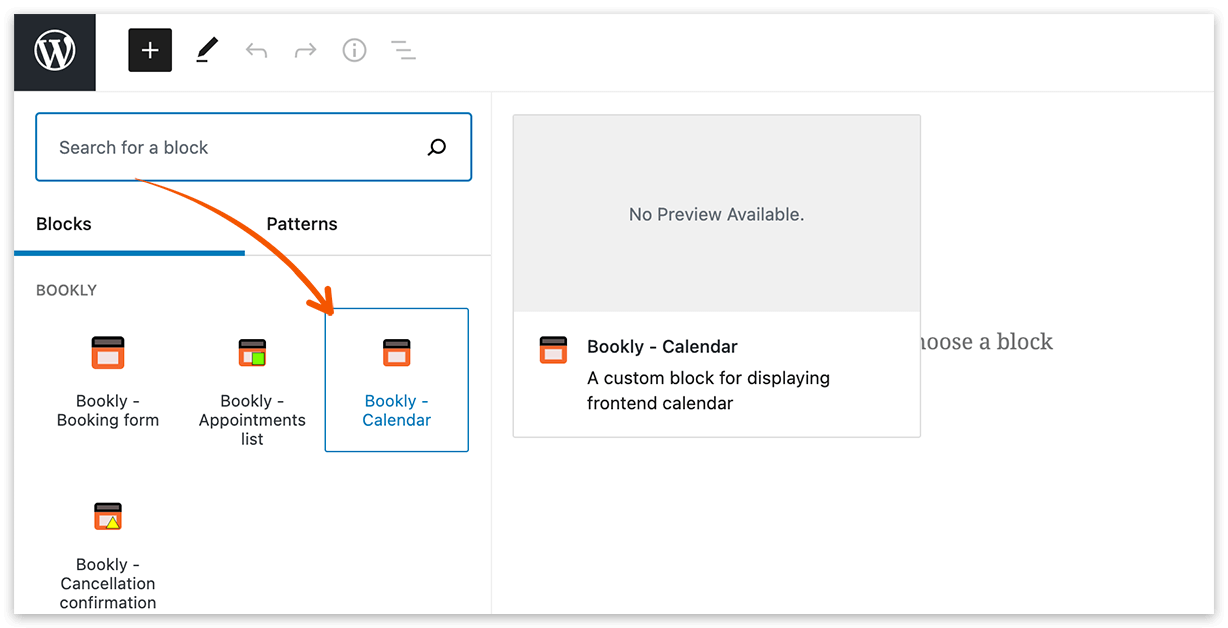
- Select the Bookly - Calendar block to insert the
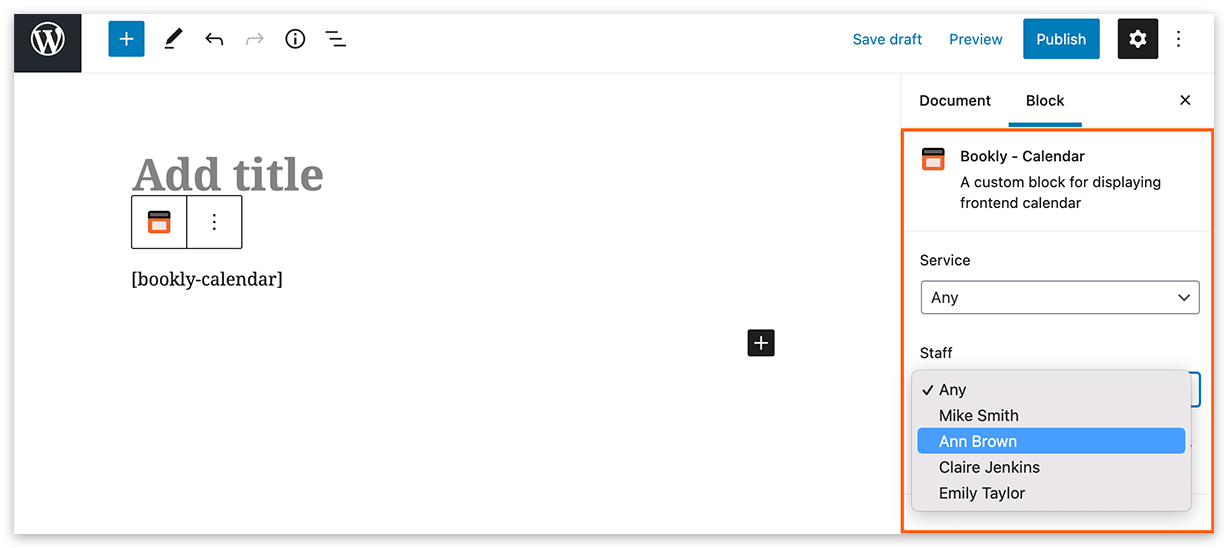
[bookly-calendar]shortcode. - Choose all staff members and services, or select specific ones — for example, for separate staff booking pages.
Related articles
Section titled “Related articles”- View and Manage Appointments — manage bookings in the WordPress admin panel.
- All Shortcodes — find other Bookly shortcodes for your website.