
Gift Cards
With Bookly Gift Cards (Add-on), you can create and sell gift cards that customers can use to pay for appointments through your Bookly booking form.
Features
Section titled “Features”- Create gift cards for specific customers
- Restrict gift cards to selected services or staff members
- Sell gift cards through your booking form
- Create multiple gift cards at once
- Set validity periods
- Notify customers or staff when a gift card is purchased
Each gift card has an initial balance. If an appointment costs less than the available balance, the customer can use the remaining amount for future bookings.
1. Install the add-on
Section titled “1. Install the add-on”Purchase, download, install, and activate Bookly Gift Cards (Add-on) in WordPress → Plugins. Then open Gift Cards in Bookly.
2. Create a gift card type
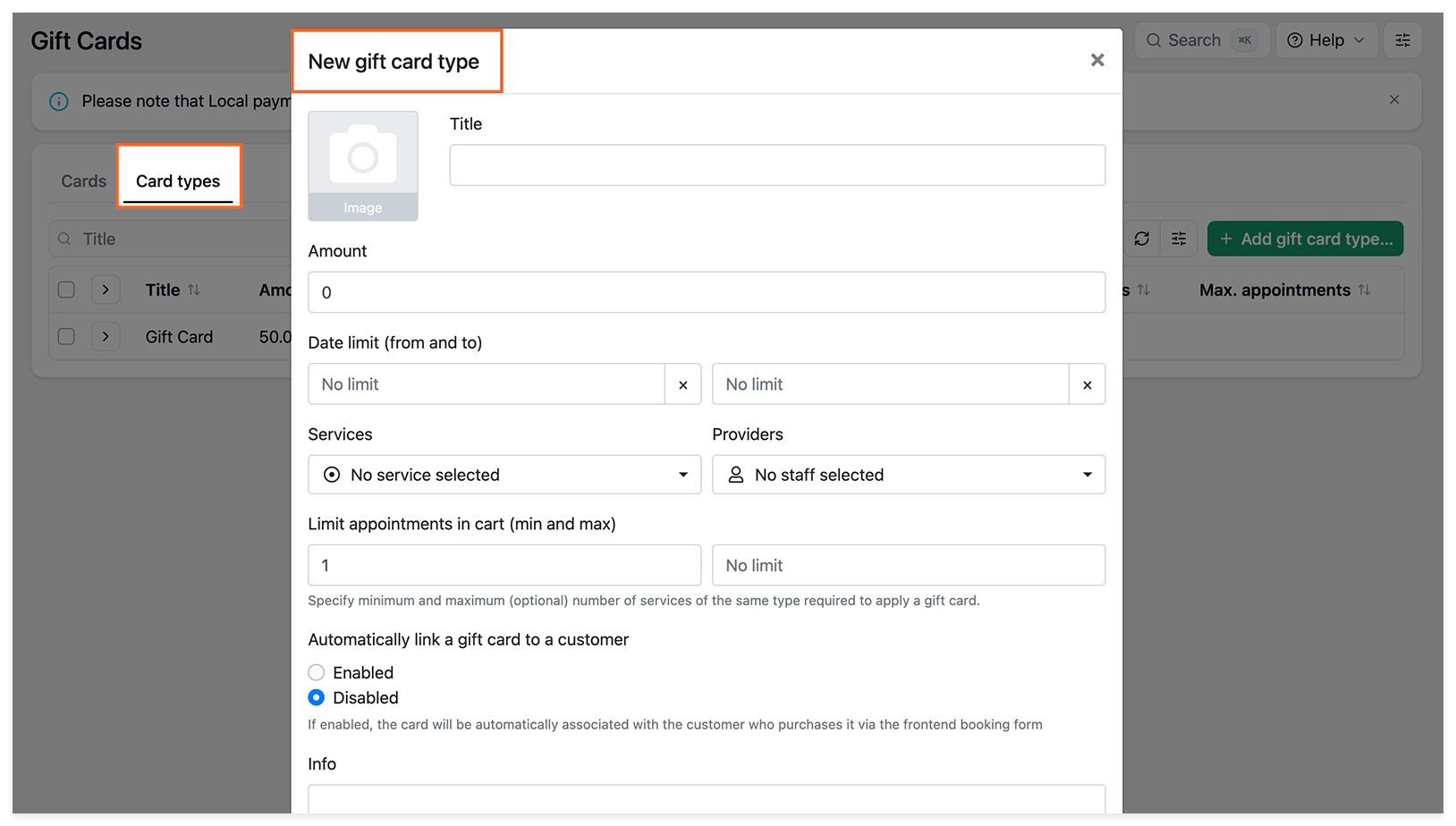
Section titled “2. Create a gift card type”Go to Card types → Add gift card type and configure:
- Title, Image, and Amount — the card’s name, image shown in the booking form, and initial balance.
- Date limit (from and to) — the validity period.
- Services and Providers — the services and staff members the card can be used for.
- Limit appointments in cart (min and max) — the number of appointments required to use the card. Leave blank for no restrictions.
- Automatically link a gift card to a customer — restrict purchased cards to the customer who bought them.
Save your changes.
3. Issue a gift card
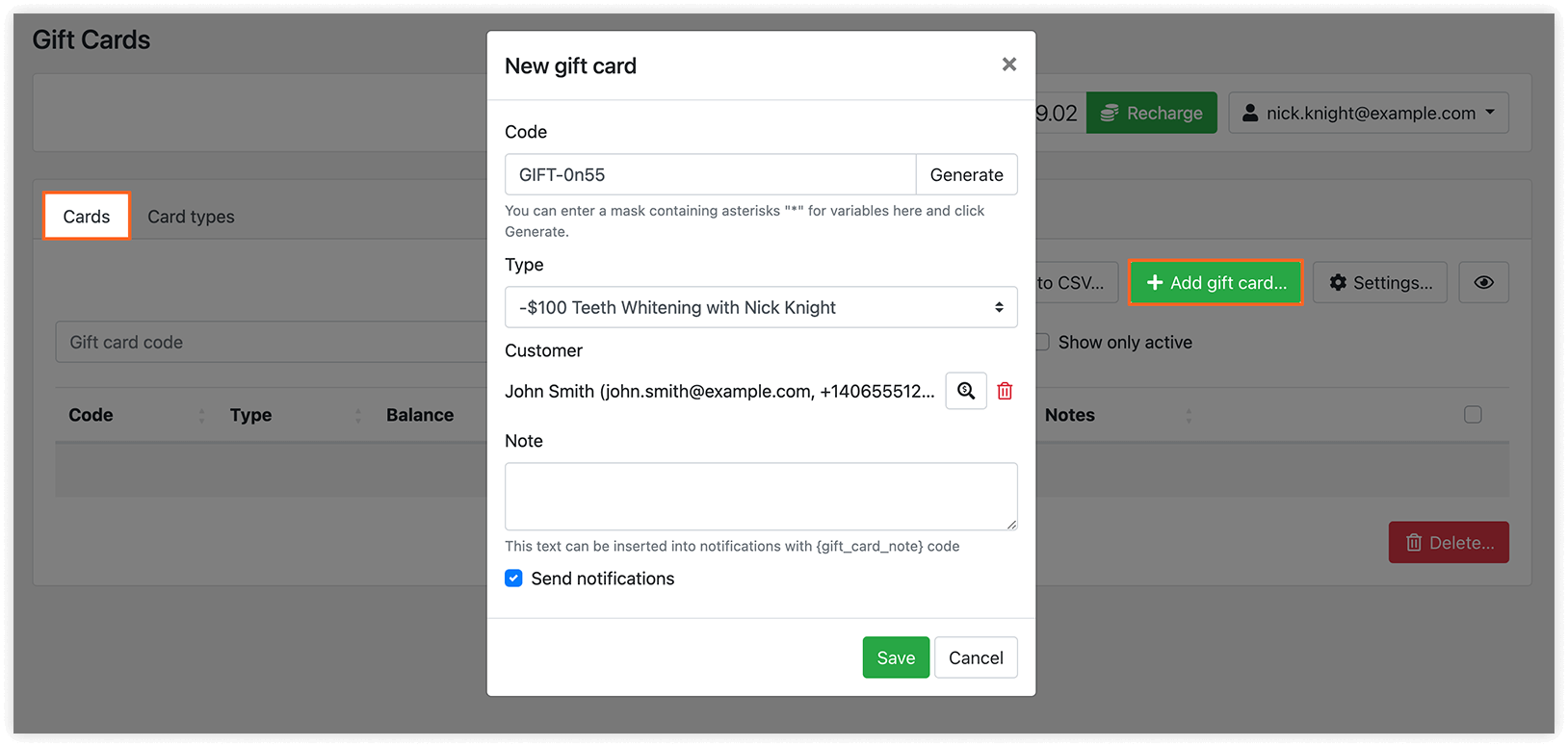
Section titled “3. Issue a gift card”Go to Cards → Add gift card:
- Enter a Code or click Generate.
- Select the card Type.
- Optionally, select a Customer to restrict the card to that person.
- Enable Send notifications to notify the customer, and add a Note if needed.
Save your changes.
4. Configure notifications
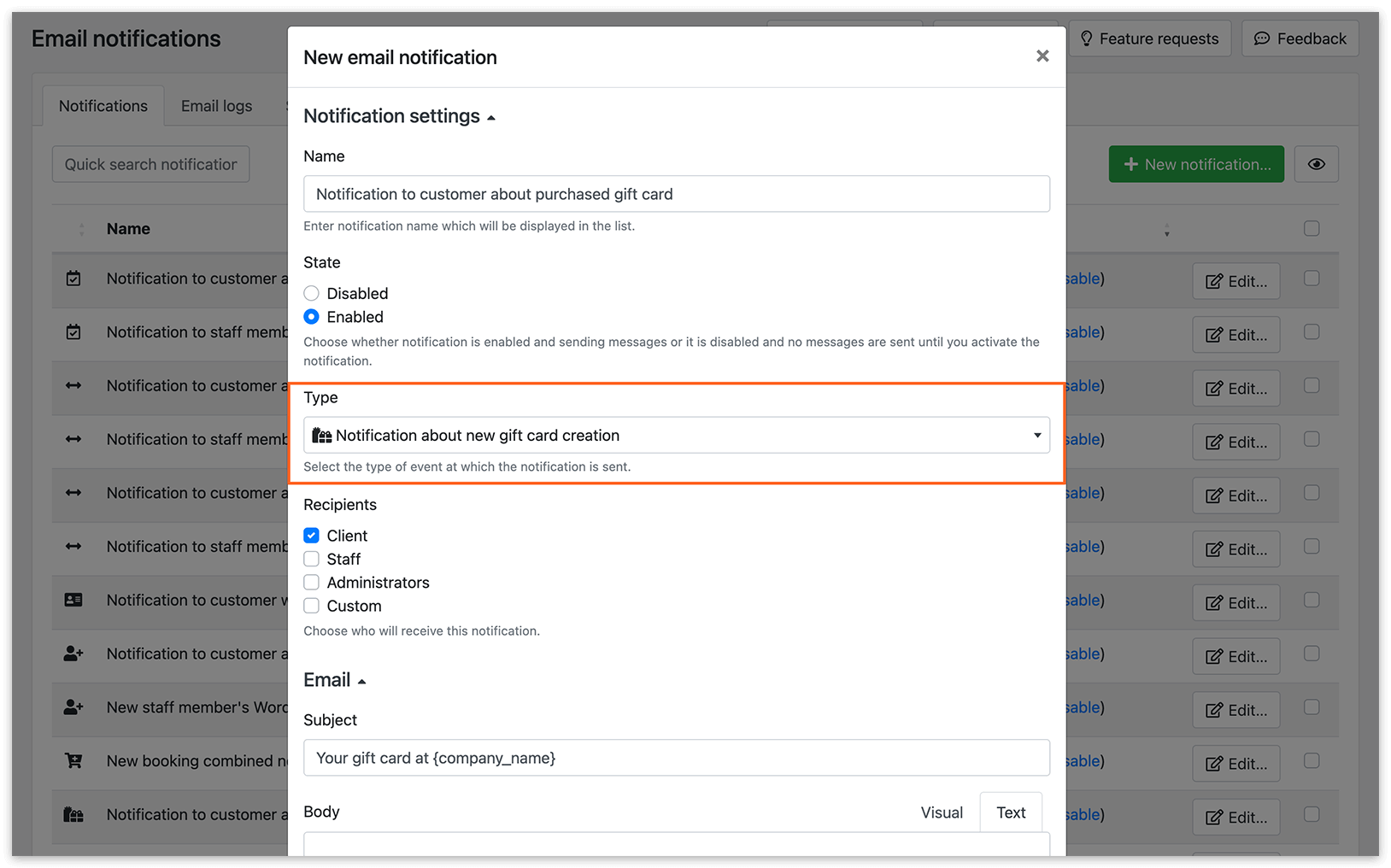
Section titled “4. Configure notifications”In Email Notifications and/or SMS Notifications, configure Notification about new gift card creation.
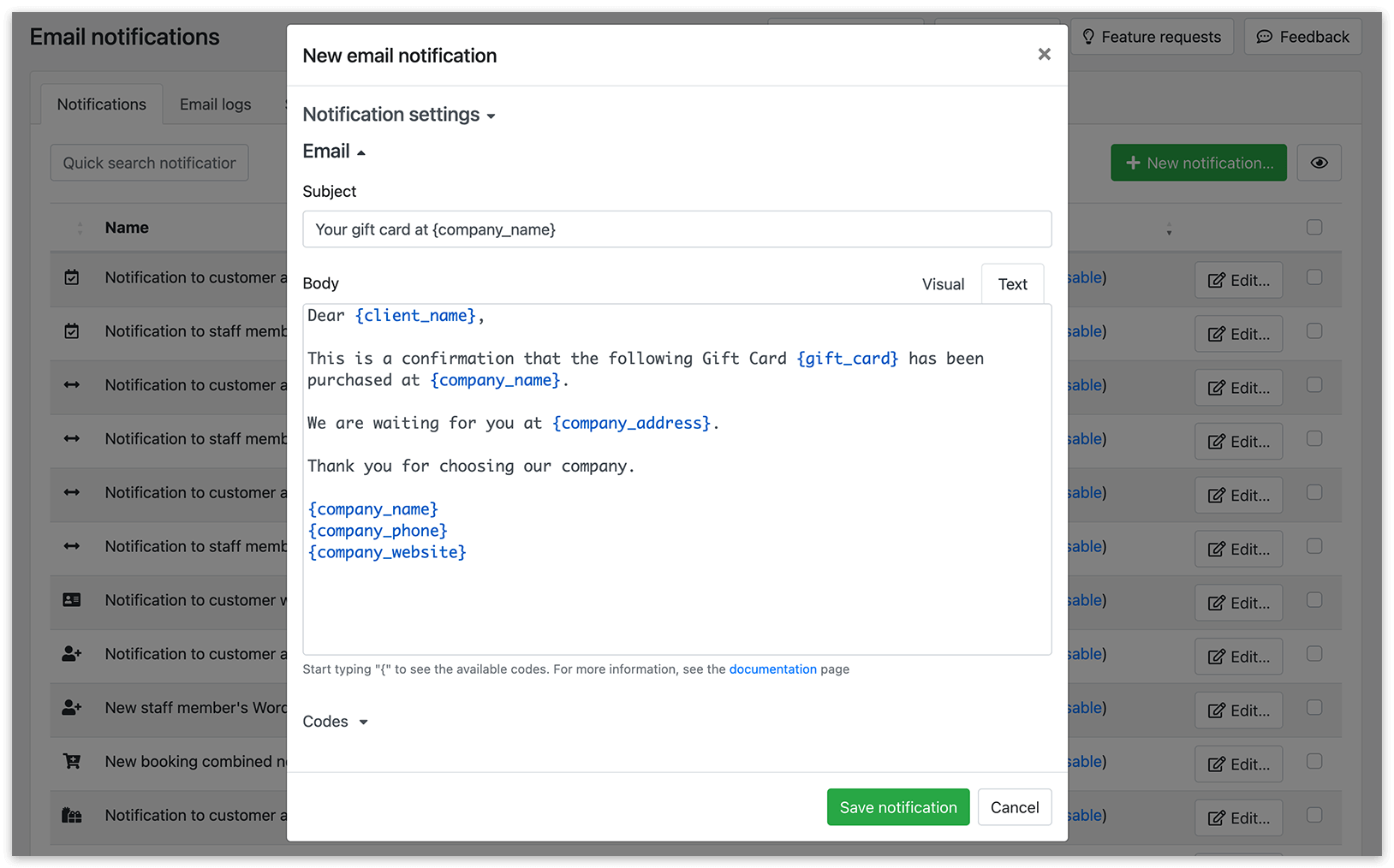
You can include these placeholders:
{gift_card}{gift_card_amount}{gift_card_date_limit_from}{gift_card_date_limit_to}{gift_card_note}
5. Enable gift card payments and sales
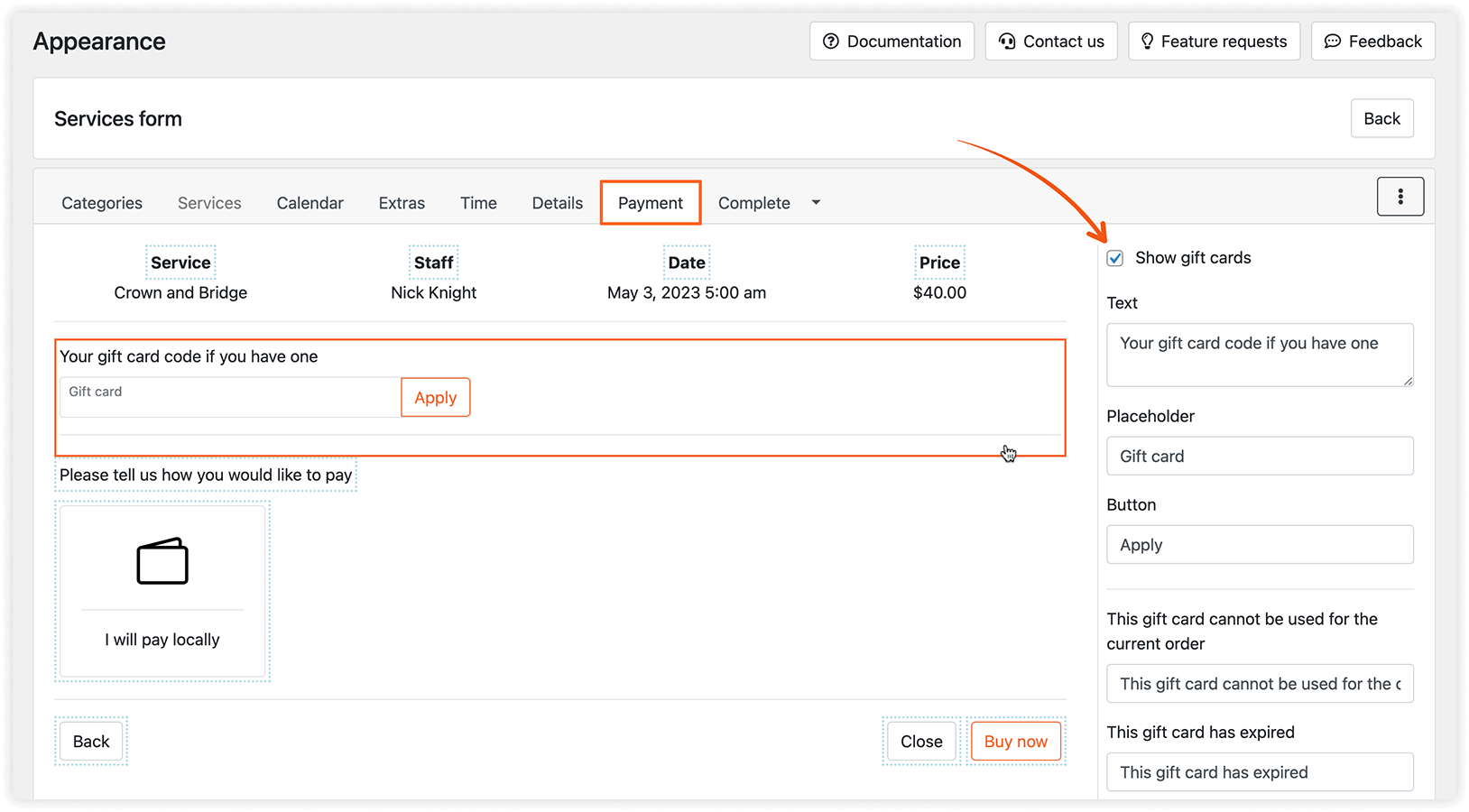
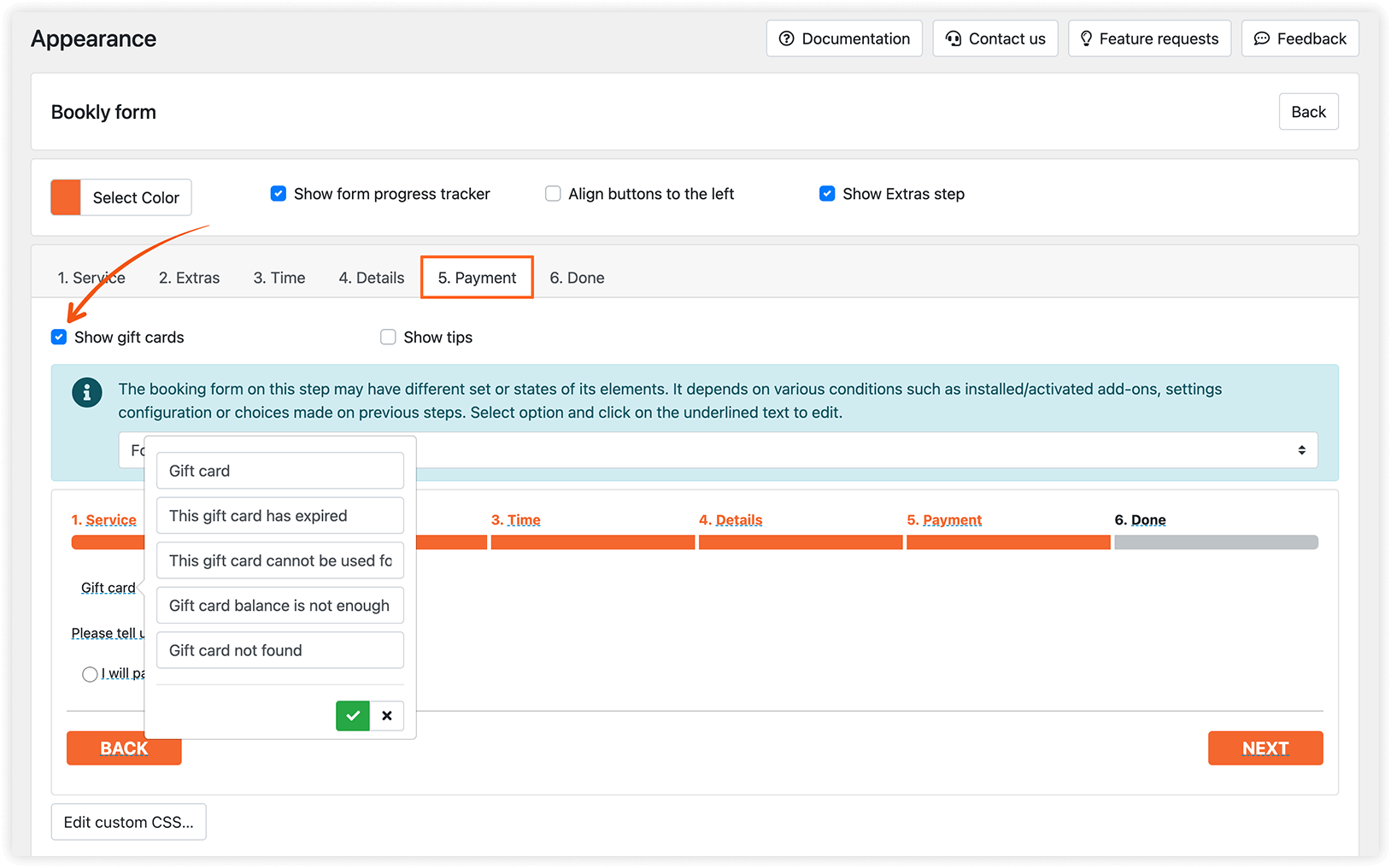
Section titled “5. Enable gift card payments and sales”Go to Appearance → your booking form type → Payment and enable Show gift cards. Adjust the displayed text if needed.
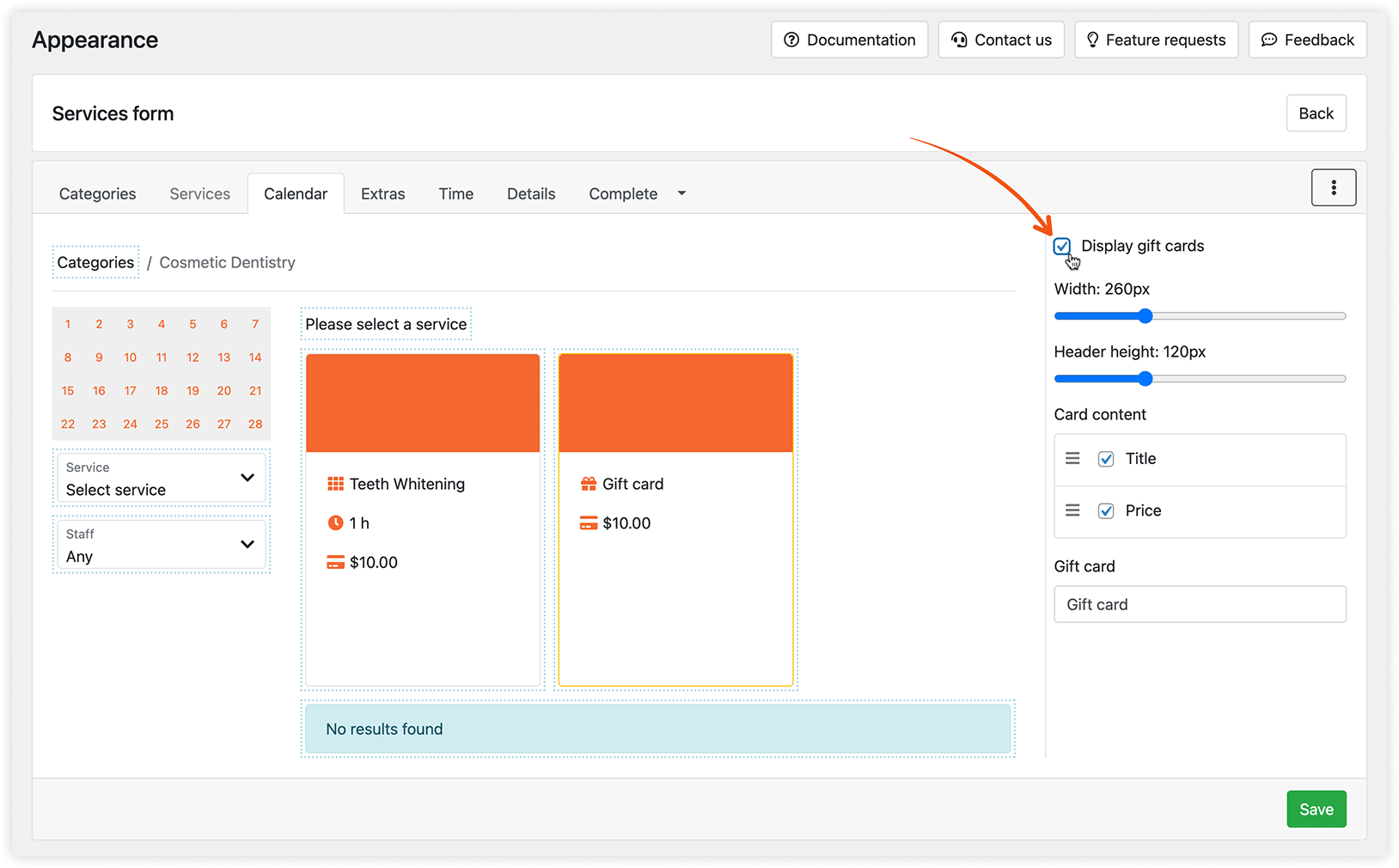
To sell gift cards through a modern booking form, enable Display gift cards in its Appearance settings. You can also customize the card content.
Gift card settings
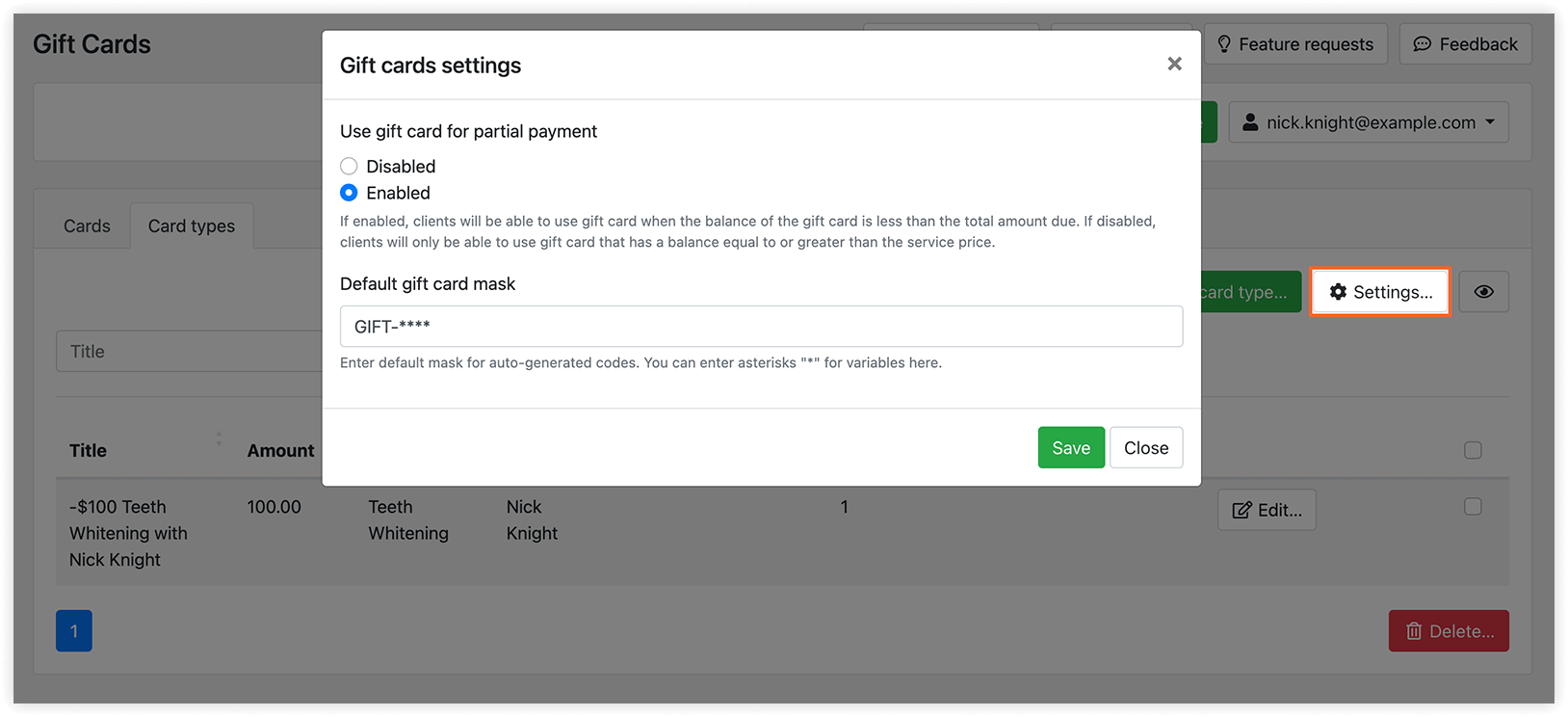
Section titled “Gift card settings”- Use gift card for partial payment — allow customers to pay any amount not covered by their gift card using another available payment method.
- Default gift card mask — set the format for gift card codes.
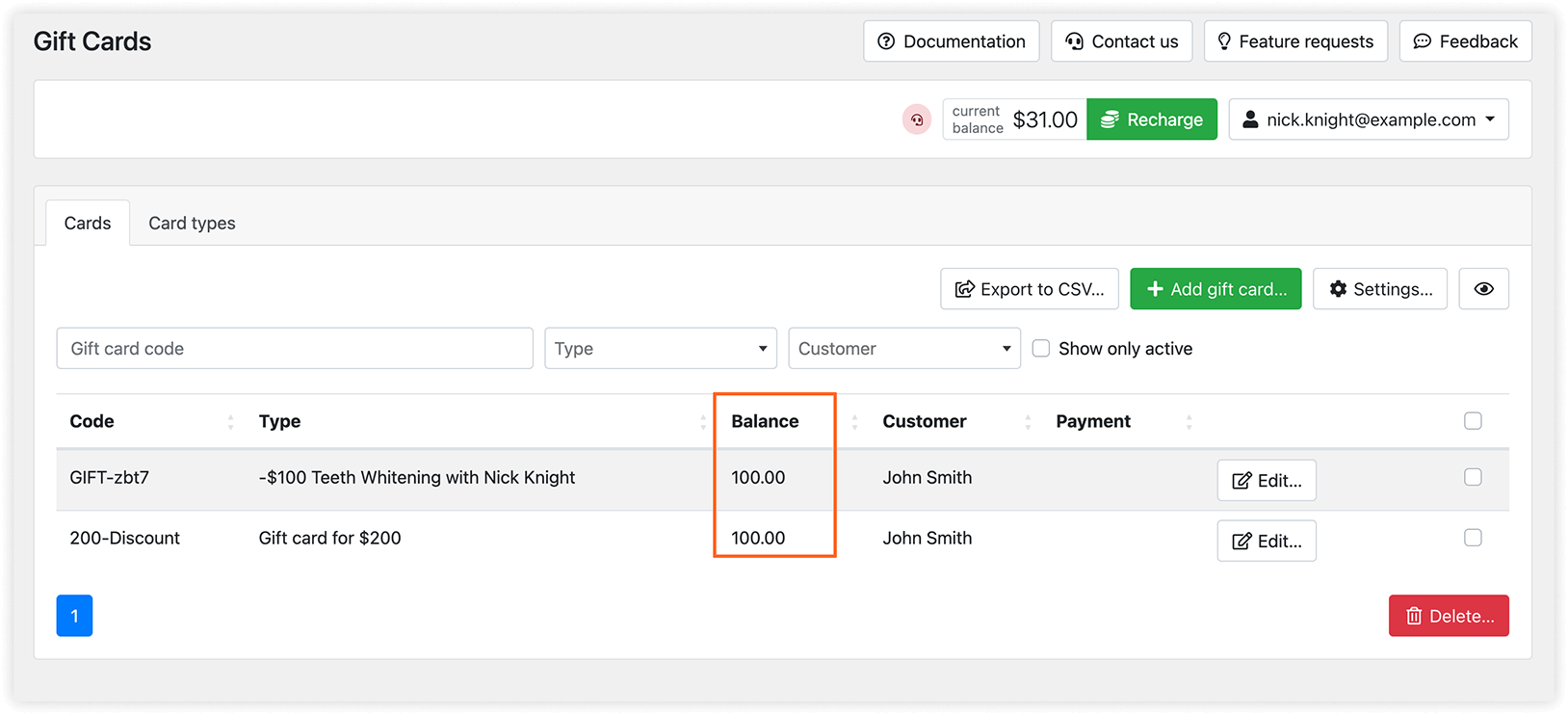
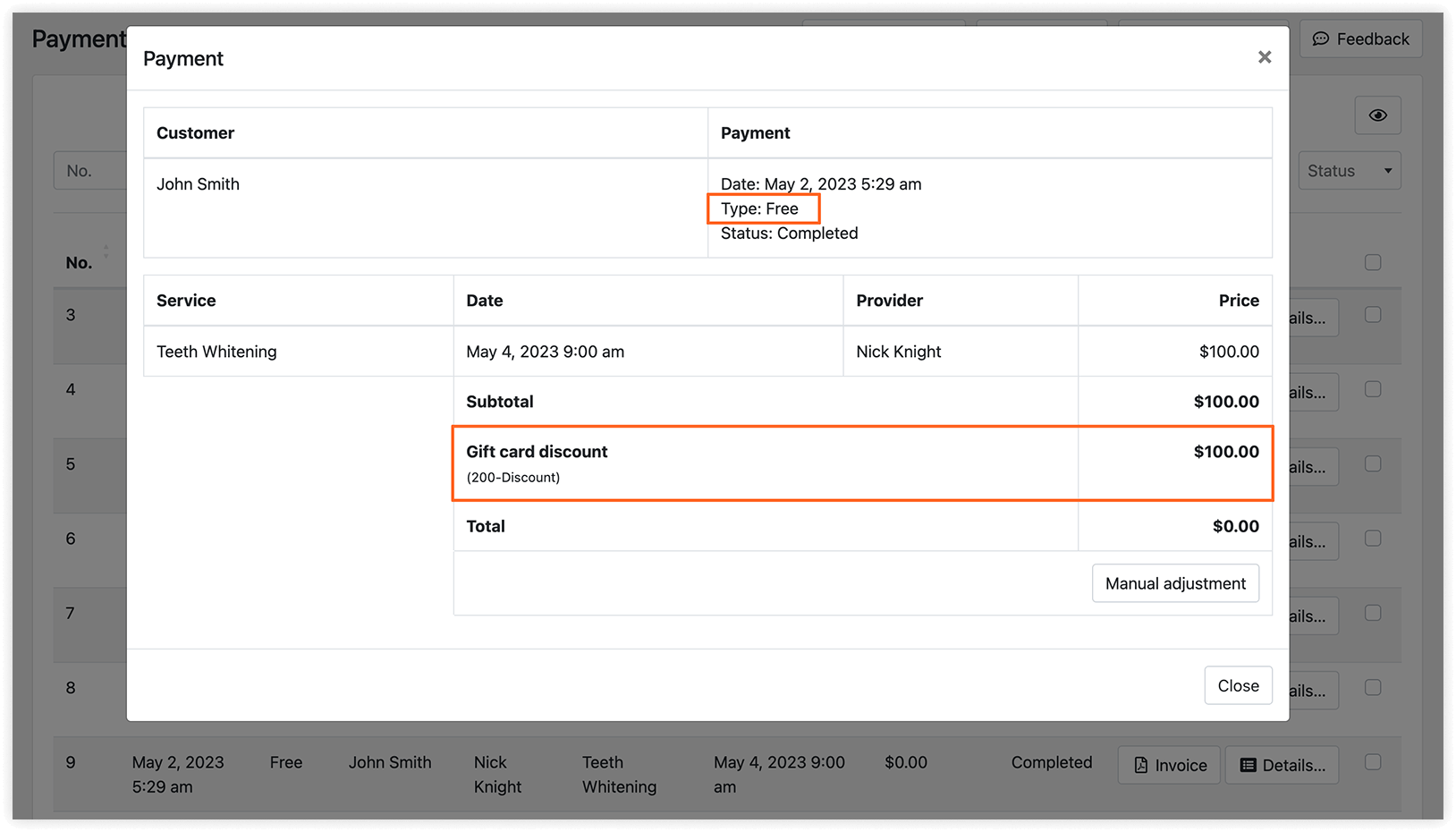
A card can be used for multiple appointments until its balance runs out. Check the remaining amount in the Balance column of the Gift Cards table. Payment reports also show which gift cards were used.
Let customers view their gift cards
Section titled “Let customers view their gift cards”Add the [bookly-customer-gift-cards] shortcode to a page to display each customer’s assigned gift cards, including their images, original amounts, and remaining balances.
Customers sign in with their WordPress credentials. Enable Create WordPress user account for customers in Settings > Customers and configure the New customer’s WordPress user login details notification.
For details, see publishing shortcodes and customer access to bookings.
RELATED
Section titled “RELATED”Payments in Bookly – explore all payment options for your online booking form.